Category Archives: Social NW

Tweet by highlighting – TinyTweet

I … [hmmm I need to change the starting style most of my posts start with I].

This is for all twitter users who like to tweet all the cool stuff which is found on the internet. Now there are two ways to tweet the info you like.

You use twitter on website.

>So you copy text you want to tweet and paste into the twitter box.

>Then you copy the url/link.

>Goto any url shortening service website to get a shortened url and copy that.

>Paste that in twitter box

>And finally click update. whoaa… thats too tiring… at least for me…

The second way is use some twitter client like tweetdeck that saves a step by shortening the url by itself. But still if u want to share a lot of good stuff then it becomes tiring.

I always wanted to have an application that allowed to me to highlight the text to be tweeted and if that text contained a link then that link should be shortened and appended to the end of the tweet.

I asked a few friends how to go about developing it on my own… As its a well proven fact that I am a lazy person so I waited for this kind of app to be developed and kept checking continously and today I have found one.

Ladies and gentlemen, bloggers and tweeple let me intoroduce to you a firefox addon which does just what I had wanted to develop and in a better manner… the mighty TINYTWEET

tinytweet

This add-on gives you the power of twitter at your mouse pointer!
Simply highlight any text inside of any web page, and a “tweet this” button will appear. Click it, and an automatically generated bit.ly link is created, and the selected text is ready to be tweeted!

Add Prev Next post link to wordpress blog

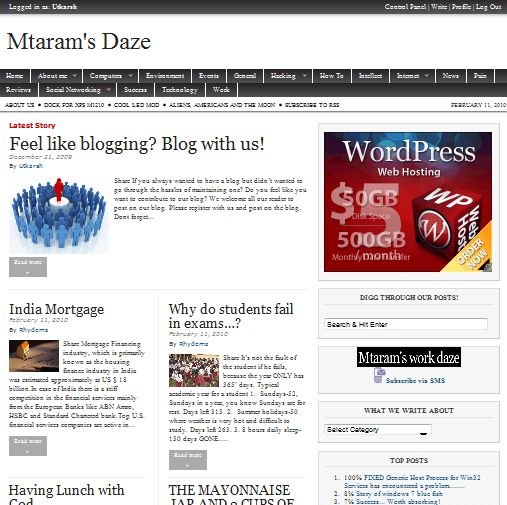
Some of the themes of wordpress dont come with previous/next post links when viewed in single post mode. This can be quite frustrating for the readers [it sure was for me]. My theme is “Magazine Basic” and it doesnt have previous/next post links.

To add these links to my theme I tried Bobs simple navigation plugin. But the issue with this plugin is that, It just displays the post title as a link confusing the users what that link is about. There is a hover feature that tell the link details but it take more than 2-3 seconds to be visible.

I tried a lot and ultimately found the solution here. I did a little customizations. Following are the steps how to go about it along with my customizations.

First you need to have access to the directory which holds your wordpress files.

Navigate to <blog dir>/wp-content/themes/<your theme>/single.php

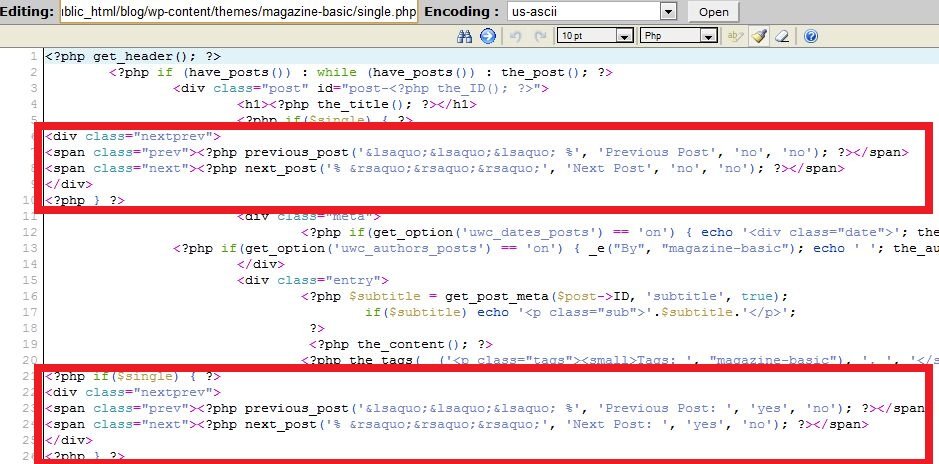
and edit it. Add the follwing code where you want it to be visible. I added it twice to make it appear at top and bottom of the post.

wp link

<?php if($single) { ?>
<div>
<span><?php previous_post('&lsaquo;&lsaquo;&lsaquo; %', 'Previous Post', 'no', 'no'); ?></span>
<span><?php next_post('% &rsaquo;&rsaquo;&rsaquo;', 'Next Post', 'no', 'no'); ?></span>
</div>
<?php } ?>

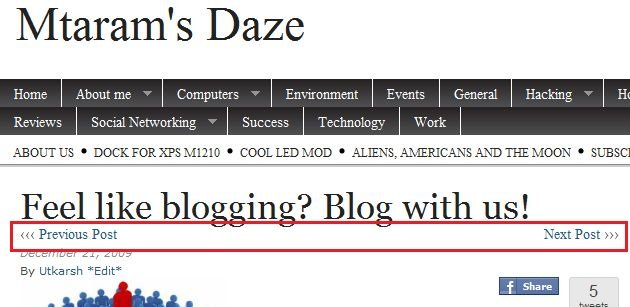
This would just show the text you want to display for the links.

top

<?php if($single) { ?>
 <div>
 <span><?php previous_post('&lsaquo;&lsaquo;&lsaquo;  %', 'Previous Post', 'yes', 'no'); ?></span>
 <span><?php next_post('% &rsaquo;&rsaquo;&rsaquo;',  'Next Post', 'yes', 'no'); ?></span>
 </div>
 <?php } ?>

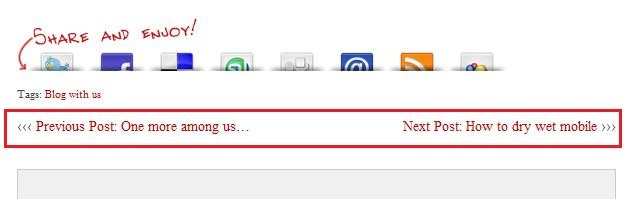
This would show the name of the post too along with the text.

bottom

As you can see both links are differently styled… It depends upon the style defined for that region in the css.

One last step.

The above code wont show any results unless you define the details in the css file located at Navigate to

<blog dir>/wp-content/themes/<your theme>/styles.css

Edit this file and add

.nextprev {
 height: 1.5em;
}
.nextprev .prev {
 float: left;
}
.nextprev .next {
 float: right;
}

WordPress Tricks to Improve Your Blog

Build a Featured Posts Section for WordPress

Magazine themes are becoming increasingly popular. There are plenty of quality premium themes available, and also some decent free magazine themes, but you may want to build or customize your own. This tutorial covers the process of coding the index.php file to set up a magazine-style front page with a featured post section.

Featured Post Section

WordPress Sidebar Turned Apple-Flashy Using jQuery UI

Sidebars are often pretty boring. If you’re looking to improve yours, this tutorial goes through the process of using jQuery that expands and reacts to user actions, similar to the Apple sidebar.

Flashy Sidebar

How to Make a Featured Post Carousel for WordPress

This tutorial will show you a different approach to displaying featured content. The technique is fairly simple, and can easily be applied to any blog that wants to give more exposure to certain content. This only requires a few coding changes to get the featured content in the carousel.

Featured Post Carousel

Building a Better Blogroll: Dynamic Fun with SimplePie and jQuery

This tutorial from Chris Coyier is not exclusively for WordPress, but this could easily the sidebar for many WordPress users. Blogrolls are common sidebar features, but with this tutorial Chris shows how the traditional blogroll can be taken a step further by bringing in feeds from other sites and blogs using SimplePie and jQuery. This technique is especially useful for those who run multiple blogs or a network.

Build a Better Blogroll

Dynamic Highlight Menu

Nick La of Web Designer Wall has a post with a number of WordPress hacks, one of them being the dynamic highlight menu. Nick shows his approach for creating the navigation menu at Best Web Gallery that highlights the current location for visitors.

Dynamic Highlight Menu

Two-Tiered Conditional Navigation

In this tutorial Darren Hoyt provides the code for creating a WordPress navigation menu that shows both parent pages and the relevant child pages. For sites and blogs that have a lot of content and pages, this trick can help to improve user experience.

Two-Tiered Conditional Navigation

WordPress Custom Fields: Laying Text Over Your Lead Graphic

WordPress’s custom fields open up endless possibilities for theme developers and bloggers.  In this tutorial you’ll learn how to use custom fields to display an image for a post with text laying on top of it.

Laying Text Over Lead Graphic

“Magazine-Style” Horizontal Dropdown Menu

Jean-Baptiste Jung shows another technique for improving the navigation of a WordPress site. The horizontal dropdown menu uses categories and sub-categories to create a magazine-style nav menu.

Horizontal Dropdown Menu

Integrate a Slideshow into Your WordPress Theme

Smooth Gallery is a MooTools gallery that can add some sizzle to a website. In this tutorial you’ll learn how to integrate Smooth Gallery with WordPress.

Integrate a Slideshow

Adding Tabs to Your Blog Sidebar

If you’d like to improve your sidebar by adding some tabbed content/navigation areas, this tutorial covers the process of using Yahoo! TabView in your WordPress sidebar.

Adding Tabs to Your Sidebar

Create a “Send This to Twitter” Button

As Twitter continues to increase in popularity, integrating Twitter and WordPress will likely continue to become more common. This post isn’t really a tutorial, but it does give the code that you need to add a “send this to Twitter” link or button to your WordPress blog.

Send This to Twitter Button

Plugins:

J Post Slider Plugin

With the J Post Slider Plugin gives WordPress users an easy way to add an attractive image slide show that can be controlled from the admin panel.

J Post Slider Plugin

Lightview for WordPress

Lightview is similar to Lightbox. However, Lightview also works with videos and iframed web pages in addition to photos.

Lightview for WordPress

NextGEN Gallery

NextGEN Gallery is a full integrated Image Gallery plugin for WordPress with a Flash slideshow option.

NextGEN Gallery

Advanced Category Excluder

Advanced Category Excluder allows WordPress users to easily have CMS-like control over which content appears on the front page, in RSS feeds, archives and more.

Advanced Category Excluder

Event Calendar 3

With Events Calendar 3 you can manage future events as an online calendar. Display upcoming events in a dynamic calendar, on a listings page, or as a list in the sidebar.

Events Calendar 3

WP e-Commerce

WP e-Commerce is a highly useful plugin for bloggers or website owners who want to sell products from their site without a lot of work to set up an e-commerce site.

WP e-Commerce Plugin

TDO Mini Forms

With TDO Mini Forms you can allow users to submit posts by completing a form. The posts are held in moderation until you choose to publish them.

TDO Mini Forms

FV Community News Plugin

Community news sections are popular among design blogs. This plugin will make it easy to accept and publish user submissions. There are a lot of options and control for the site owner or administrator.

FV Community News Plugin

Yoast Breadcrumbs

Breadcrumb navigation can be helpful for usability and SEO purposes. This plugin allows you to easily add plugins to your WordPress theme.

Tweepi.com- Poweful twitter tool

tweepi-logo

Tweepi has 4 tools so far, with more to come:

1. Geeky Follow Utility: follow active and sociable users with the same interests as yourself

There are too many people out there using Twitter for an infinite variety of reasons and to share a wide collection of topics ranging from business, to cooking, dancing, technology and so on. The most common way to find and add people with the same interests as you, is to find a popular tweeple within your area of interest, say “@mashable” or “@techcrunch” for technology news, and add people who follow these known users.

This tool helps you filter these people – the geeky way, with numbers in a table – based on their activity and sociability, and follow only quality twitterers.

Tweepi.com Geeky Follow Tool Tweepi.com Geeky Follow Tool 

 
2. Geeky Flush Utility: teach users who do not follow you back a lesson by unfollowing them

Many users on Twitter feel that if a user does not follow them back, it’s somehow insulting. This utility is designed to “teach those users a lesson by unfollowing them” with just a few clicks.

Tweepi.com Bulk Flush Tool Tweepi.com Bulk Flush Tool 

3. Geeky Reciprocate Utility: follow your followers back with a few clicks

It takes a really long time to find all the users you’re not following on Twitter and then following each one back individually! This tool helps you find all the users that follow you, but you do not follow back, and enables you to follow them back with a click of a button.

Tweepi.com Reciprocate Tool Tweepi.com Reciprocate Tool 

4. Geeky Cleanup Utility: filter deadbeat (and useless) tweeples and unfollow them

So, you’re following a few thousand people on Twitter. You must have noticed that many of these users do not engage in conversations, never retweet anybody, or simply just ramble about nonsense stuff all day long (no links to useful content whatsoever!). You can use Tweepi’s geeky cleanup tool to filter these people out and unfollow them.

Geeky Cleanup enables you to clean-up and unfollow annoying tweeples. It lists the users you’re following with information about each, and you can just pick whom to unfollow from the list!

Tweepi's Bulk Cleanup Utility Tweepi.com Bulk Cleanup Utility 

Why do we call it “geeky”?

Tweepi Presets helps you pick better tweeps Tweepi Presets help you pick better tweeps 

That’s simple. I built Tweepi the way I would prefer other services to work – with numbers. I like to know how many tweets a person sent the last week, how many RT’s he made/received, and so on. The list of numbers that I was able to think of and was implemented in Tweepi.com is:

  • Followers
  • Following
  • Updates
  • Tweets last 1 week *
  • Replies sent by user *
  • RTs done *
  • Links tweeted *
  • Replies received *
  • Times retweeted by others *
  • [replies sent] to [replies received] ratio *
  • [followers] to [following] ratio *
  • Links tweeted ratio *

The (*) means that they are limited to the last 7 days.

Of course you can sort the table anyway you want, customize what columns are hidden/shown or use one of the presets to order people by: activity last 7 days, reach/influence (RT and get RT’ed much), twitterers who discuss much (compare replies), higher followers to following ratio or avoid linkless ramblings!

Why Tweepi is a bit geeky? Because it shows numbers! Why Tweepi is a bit geeky? Because it shows numbers – not just blind suggestions! 

How to use Tweepi?

I added some tool tips around the site to help explain how some of the features work. Each of the presets is explained in a tool tip, as well as how to select multiple users. Just hover your mouse above the relevant text. A “Frequently Asked Questions”/FAQ section will be added soon.

 Tweepi is in, as we like to call it “very much a beta” mode. You might find small bugs around the system, and we’d appreciate it if you’d report them to us using the “Feedback” button to the right of all pages of Tweepi.com.

Basic twitter Terms! A must for all

A-S

adventuritter: an adventurous twitterer

beetweet: a buzzing tweet; a “hot” tweet

co-twitterer: a partner that tweets on your Twitter account.

dweet: tweet sent while intoxicated

drive-by-tweet: a quick post inbetween tasks

friendapalooza: a quick burst of friend-adding

mistweet: a tweet in which one later regrets

neweeter: a new tweeter

occasionitter: an occasional tweeter

politweeter: a political tweeter

politweet: a political tweet

qwitter: a tool used to catch twitter quitters- UseQuitter.com

reportwitters: reporter style twitterers

sweeple: sweet twitter people

Twa-

twadd: to add/follow someone to your Twitter account as a friend.

twaffic: Twitter traffic.

twaiting: twittering while waiting.

twalking: walking while twittering via text.

twapplications: Twitter applications.

Twe-

twead: to read a tweet from a fellow twitterer.

tweepish: feeling sheepish or regretful about something you tweeted.

tweeple: Twitter people, Twitter members, Twitter users.

tweeps: Twitter people that follow each other from one social media/network to another.

tweetaholism: the continued use of Twitter as an addiction that is difficult to control.

tweetaholic: someone addicted to Twitter, so much so that it may be an actual problem.

tweet-back: bringing a previous tweet conversation or reference back into the current conversation.

tweet-dropping: eavesdropping on someone else’s home page in friends mode.

tweeter: a user of Twitter.

tweeterboxes: twitterers who tweet too much.

tweetheart: that special tweeter who makes your heart skip a beat.

tweetin: when a group of twitterers agree to get together at a set time to twitter.

tweet(ing): the act of posting to Twitter.

tweets: posts on Twitter by twitterers.

tweetsulted, tweetsult: what do you think it means, you dumb twitterer?

tweetup: when twitterers meet in person – a Twitter meet up.

Twi-

twideo-cronicity: when you’re watching someone’s videos and they are simultaneously leaving a comment or tweet for/at/about you.

twiking: biking while twittering via text.

twinkedIn: inviting friends made on Twitter to connect with you on LinkedIn( ).

twis: to dis a fellow twitterer. very bad form.

twitosphere: community of twitterers.

twittastic: fantastic, wonderful, superb.

twittcrastination: avoiding action while twittering, procrastination enabled by Twitter use.

twittduit: If you need to tweet a friend that does not follow you, post a twittduit asking your followers to pass a message.

twittectomy: an unfollowing of friends.

twitter-light zone: where you are when you return to Twitter after any time away and feel disoriented and lost.

twitter stream: a collection of tweets often times in alphabetical order

twitosphere: the community of twepple.

twitterati: The A-list twitterers.

twittercal mass: a community that has achieved a critical mass of twitterers.

twitterer: a user of Twitter (compare: tweeter).

twittering: to send a Twitter message.

twitterish: erractic behavior with short outbursts.

twitteritas: women who play with their twitters.

twitterness: a person’s contribution to the twitosphere.

twitterfly: being a social butterfly on Twitter evidenced by extreme usage of @ signs.

twitterject: interject your tweet into an existing tweet stream of conversation.

twitter-ku: those who either post on both Twitter and Jaiku( ) or load their Twitter feed into Jaiku.

twitterlinkr: a service collecting the best links posted through Twitter.

twitterlooing: twittering from a bathroom.

twitterloop: to be caught up with friend tweets and up on the conversation.

twittermob: an unruly and ragtag horde of people who descend on an ill-prepared location after a provocative Twitter message.

twittermaps: a mashup technology that lets Twitter users find each other using google maps.

twitterpated: to be overwhelmed with Twitter messages.

twitterphoria: the elation you feel when the person you’ve added as a friend adds you back.

twitterage: rage at a twitter post.

twitterrhea: the act of sending too many Twitter messages.

Twegosearching: Something we never, ever do. Every 5 minutes. All day.

Twitophant / Twitophantic: One who repeatedly tweets the Top 100 in an attempt to gain more followers. Actually pretty smart.

Greentweets International: Well-meaning organizers of the Save the Fail Whales campaign.

15 Killer Hacks for WordPress that Are Extremely Useful

1. Link to External Sources from Your Post Title

Often it is the case where blogger wants to just link to an external resource because he/she finds it useful to their readers. The main problem they face is that they have to make a new post in order to just tell the readers to go to another site. In this Custom Field Hack we will show you how you can link to an external link from your post title.

First thing you need to do is open your functions.php which is found in your template folder where other files like single.php and page.php is located. Paste the following code:

function print_post_title() {
global $post;
$thePostID = $post->ID;
$post_id = get_post($thePostID);
$title = $post_id->post_title;
$perm = get_permalink($post_id);
$post_keys = array(); $post_val = array();
$post_keys = get_post_custom_keys($thePostID);

if (!empty($post_keys)) {
foreach ($post_keys as $pkey) {
if ($pkey==’url1′ || $pkey==’title_url’ || $pkey==’url_title’) {
$post_val = get_post_custom_values($pkey);
}
}
if (empty($post_val)) {
$link = $perm;
} else {
$link = $post_val[0];
}
} else {
$link = $perm;
}
echo ‘<h2><a href=”’.$link.’” rel=”bookmark” title=”’.$title.’”>’.$title.’</a></h2>’;
}

Now you would need to open your index.php and find the following code or something similar:

<h2><a href=”<?php the_permalink() ?>” rel=”bookmark”><?php the_title(); ?></a></h2>

Change it to:

<?php print_post_title(); ?>

Once you have done that, upload both files to your webhost.

Now when you are writing a post, scroll down to where it says Custom Fields. Find the name: url1, title_url, or url_title and add the url to the external resource. Add a short description if you so desire, and hit publish.

Don’t be afraid, this function does not take away your normal post title links, all it does is add an extra query which checks for custom field for external links. If the external link is not included, it refers to the default code and link to the normal post page

There is also a plugin that does this job. It is called Page Links To

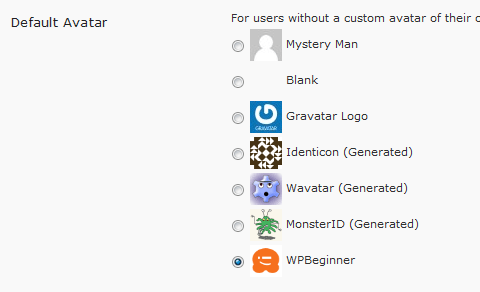
2. Change the Default Gravatar for Comments

Good Bye Mystery Man

The default mystery man is really annoying for most users. Plus if you have one more chance of branding your blog, then why not do it. Changing your default gravatar lets you brand your blog more. With this snippet below you can change your default gravatar.

First you need to open your functions.php which is located in your template folder. If you don’t have one then create one and insert the following code:

add_filter( ‘avatar_defaults’, ‘newgravatar’ );

function newgravatar ($avatar_defaults) {
$myavatar = get_bloginfo(‘template_directory’) . ‘/images/gravataricon.gif’;
$avatar_defaults[$myavatar] = “WPBeginner”;
return $avatar_defaults;
}

In the code the image is being extracted from the theme directory and it is called gravataricon.gif obviously you will change it to your image name. Where it says WPBeginner, that is the name of the avatar of how it will show in your admin panel options area.

Gravatar Settings

Head over to your admin panel and click Settings > Discussion and change the icon, and now you have a branded comment area with your logo.

3. Display a Retweet Button with your Brand

Add a Retweet button in WordPress

With Twitter getting so much exposure, as a blogger you should already be using it to your advantage. Power of twitter is like no other because it is word of mouth advertising. To make this easier on your readers, what you can do is place a prominent retweet button, so they can retweet the article with one click. Not only just that, but you should make it the way so you can track the retweets as well. That is where tweetmeme widget comes in.

In this tutorial we will have you create a button that will link to the text in the following format:

RT @yoursitename Title of the Post – Link

Add the following code in the template file of your choosing most likely single.php

For the Large Button:

<script type=”text/javascript”>
tweetmeme_source = ‘wpbeginner’;
</script>
<script type=”text/javascript” src=”http://tweetmeme.com/i/scripts/button.js”> </script>

For the Compact Button:

<script type=’text/javascript’>
tweetmeme_style = “compact”;
tweetmeme_source = ‘wpbeginner’;
</script>

Remember to change the source to your twitter account name, this way you will not only promote your account to get more followers, but your article will be promoted as well.

4. Display Random Header Images on Your Blog

Random Header Images

Most blog designs get boring if they have a huge header picture and it is static. This is when this tutorial comes in to make your header images dynamic because it rotates on each visit. You can select as many images as you want to rotate randomly. It brings life to a blog.

First you need to name your images in this format:

  • headerimage_1.gif
  • headerimage_2.gif
  • headerimage_3.gif

You must separate the name with an underscore. You can change the headerimage text to himage or anything you like.

Once you have done that paste the following code in your header.php where you would like the images to be displayed or in any other file.

<img src=”http://path_to_images/headerimage_<?php echo(rand(1,3)); ?>.gif”
width=”image_width” height=”image_height” alt=”image_alt_text” />

Make sure that you change the number 3 if you decide to do more than 3 images. This code is not exclusive for WordPress, it will work with any php based platform.

5. Control When Your Posts are Available Via RSS

Control When Your Posts are Available Via RSS

There are times when you publish a post and suddenly find an error. You can go back in the admin panel and change it, but it is already published in the feeds. With this hack, you can put a delay of as many minutes as you like, so you can double check the post live.

Open your functions.php and add this code:

function publish_later_on_feed($where) {
global $wpdb;

if ( is_feed() ) {
// timestamp in WP-format
$now = gmdate(‘Y-m-d H:i:s’);

// value for wait; + device
$wait = ‘10′; // integer

// http://dev.mysql.com/doc/refman/5.0/en/date-and-time-functions.html#function_timestampdiff
$device = ‘MINUTE’; //MINUTE, HOUR, DAY, WEEK, MONTH, YEAR

// add SQL-sytax to default $where
$where .= ” AND TIMESTAMPDIFF($device, $wpdb->posts.post_date_gmt, ‘$now’) > $wait “;
}
return $where;
}

add_filter(‘posts_where’, ‘publish_later_on_feed’);

This code is adding a 10 minute delay on your post being shown on the RSS Feeds, you can change it by changing the number 10 to as many minutes as you like.

6. Display Certain Categories in a Menu

Display Certain Categories in a Menu

In many cases, users only want to display certain categories in their navigation menu at the top of the page. There are limited spots, that can only be filled by top categories, but if you use the default wp_list_categories code, it will show all categories. This is why this hack below comes in very handy when you want to create a navigation menu and only display certain categories.

<ul style=”float:left; width:730px;”>
<?php wp_list_categories(‘orderby=name&include=7,9,19,16,1,5,17,23’); ?>
</ul>

Note, you can also change the ‘include’ text to ‘exclude’ and show all categories and exclude those that you don’t want displayed. The numbers displayed in the code are the category IDs. Remember since WordPress shows categories in a list format, you will need to edit the CSS in order to make it work.

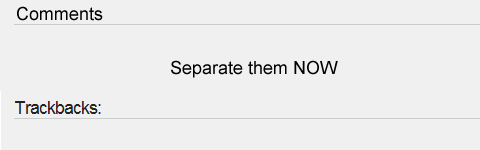
7. Separate TrackBacks from Comments

Separate TrackBacks from Comments

When you write a great post on your blog, it likely to be linked from all around the blogosphere. At the same time most great posts start a good discussion in the comments. If you don’t separate your trackbacks from comments, it is very hard for your users to follow the comments and the discussion. In this hack we will show you how you can separate trackbacks from comments.

First you need to open comments.php and find a loop that looks something like this:

foreach ($comments as $comment) : ?>
// Comments are displayed here
endforeach;

Replace it with:

<ul>
<?php //Displays comments only
foreach ($comments as $comment) : ?>
<?php $comment_type = get_comment_type(); ?>
<?php if($comment_type == ‘comment’) { ?>
<li>//Comment code goes here</li>
<?php }
endforeach;
</ul>

<ul>
<?php //Displays trackbacks only
foreach ($comments as $comment) : ?>
<?php $comment_type = get_comment_type(); ?>
<?php if($comment_type != ‘comment’) { ?>
<li><?php comment_author_link() ?></li>
<?php }
endforeach;

</ul>

Basically this list is telling WordPress to display the comments in two list. If it is a Trackback display it separately and if it is a normal comment display it separately.

8. How to List Future “Upcoming” Posts

List Future Scheduled Posts

Everyone wants more users to subscribe to their feeds. The way to get more users excited and interested in your blog is to show them the future blog posts that you have scheduled.

First you need to schedule your posts for the future dates. Then open your sidebar.php or wherever you like to display the list of future posts, and paste the following code:

<?php query_posts(‘showposts=10&post_status=future’); ?>
<?php if ( have_posts() ) : while ( have_posts() ) : the_post(); ?>
<h2><?php the_title(); ?></h2>
<span><?php the_time(‘j. F Y’); ?></span></p>
<?php endwhile;
else: ?><p>No future events scheduled.</p>
<?php endif; ?>

The code above is being sorted by the parameter post_status which in this case is “future”, but it can be draft, published and so on. There is also another parameter in this post that limits the number of posts being displayed, showposts=10. You can change the number to however many schedule posts you want to show your users.

9. Display Thumbnails Next to Each Post

Display Thumbnails Next to Each Post

Picture speaks thousand words. We have heard that saying before, and it is true with blogs also. You can’t possibly describe the post enough in a short excerpt, but adding an image brings life to the post and make the user want to click even more. With this custom field hack, we will show you how you can do just that.

First you need to make a default image of a size 210 x 210px which is what we are using at WPBeginner. You can name this default image defaultimage.gif or in this example we are using wpbeginner.gif and make sure you upload it to your theme directory folder.

Then you need to open your index.php and paste the following code where you want the image to be displayed.

<?php $postimageurl = get_post_meta($post->ID, ‘post-img’, true);
if ($postimageurl) {
?>
<a href=”<?php the_permalink(); ?>” rel=”bookmark”><img src=”<?php echo $postimageurl; ?>” alt=”<?php the_title(); ?>” width=”210″ height=”210″ /></a>
<?php } else { ?>
<a href=”<?php the_permalink(); ?>” rel=”bookmark”><img src=”<?php bloginfo(‘template_url’); ?>/images/wpbeginner.gif” alt=”<?php the_title(); ?>” width=”210″ height=”210″ /></a>
<?php } ?>

10. Set an Expiration Date for Your Posts

Set an Expiration Date for Your Posts

This hack comes becomes very useful when you are running a contest because you might be posting information such as clues or hints that you don’t want to stay up for ever. Instead of manually removing the article, you can just make it expire automatically. It also works if you have a product that you are offering a discount on. You posted it on your blog, but you don’t want that discount to stay on your blog after its over. So you can remove it automatically with this code.

All you need to do is replace your WordPress Loop with this code:

<?php
if (have_posts()) :
while (have_posts()) : the_post(); ?>
$expirationtime = get_post_custom_values(‘expiration’);
if (is_array($expirationtime)) {
$expirestring = implode($expirationtime);
}

$secondsbetween = strtotime($expirestring)-time();
if ( $secondsbetween > 0 ) {
// For example…
the_title();
the_excerpt();
}
endwhile;
endif;
?>

Once you have done that, you can use custom fields when writing a post to set an expiration date. Make sure you select the key “expiration” and use the the following date format: mm/dd/yyyy 00:00:00

Now this hack does not remove or unpublish the article instead it just excludes the article from being displayed in the loop.

11. Delete Batches of Post Revisions

Delete Batches of Post Revisions

WordPress has a lot of good features and one of them is Post Revisions. This was included in WordPress 2.6, even though this is a good feature, it can cause some problems. One of them is increase the size of your database. Depending on how long it takes you to write a post, you might have as many as fifty post revisions. Now you can manually delete them, or you can run a simple query which we will show you in this post and get rid of all these useless revisions.

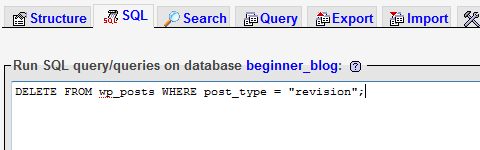
First thing you need to do is login to your phpMyAdmin and select your WordPress Database.

Click on the SQL Button and enter the following query:

DELETE FROM wp_posts WHERE post_type = “revision”;

In this code basically we looked up a table wp_posts and removed every post that had a post_type revision associated with it. Now depending on the size of your database, this may save you a lot of space.

12. Display Any RSS Feed on Your Blog

Display Any RSS Feed on Your Blog

There are often times when bloggers want to display RSS Feeds of other sites on their blog. Maybe it is from another blog of theirs that is related. This is when this hack comes handy because it makes your job much easier. There are several scripts and plugins that will do it for you, but you don’t need those because WordPress has this feature built in. And you should know that because you see the feeds in your Admin Panel Dashboard.

All you have to do is paste the following code where you want the feeds to be displayed. Most commonly placed in sidebar.php:

<?php include_once(ABSPATH.WPINC.’/rss.php’);
wp_rss(‘http://feeds2.feedburner.com/wpbeginner’, 5); ?>

Save the file and Upload it and you are done.

The function we used in this hack wp_rss is built in WordPress for future reference.

13. Display “Digg This” Button on Specific Posts with One Click

Display Digg This Button in Specific Posts

Digg Button in the article is very helpful specially when you article is submitted on digg. But you should not put the digg this button in every post because not every post is meant for digg. For example, if you post an announcement that you will be changing your theme, it does not need to be submitted on digg. This is when this hack comes in where you can just use the custom fields to display the “Digg This” Button in articles that you want.

Add this code in single.php where you want it displayed:

<?php $cf = get_post_meta($post->ID, ‘digg’, true);
if (!emptyempty($cf)) {
echo ‘http://digg.com/tools/diggthis.js” type=”text/javascript”>’} ?>

Now when you create a post use the custom field “Digg” and set any value and it will show the digg field. And if you don’t add that custom field, it will not show. Simple and easy.

14. Display Sticky Posts in One Area

Display Sticky Posts in One Area

This feature was wanted by many users therefore it was included in WordPress. Now in this hack we will show you how you can list all your sticky posts as a featured post in your home page or any other page.

<?php
$sticky = get_option(‘sticky_posts’);
rsort( $sticky );
$sticky = array_slice( $sticky, 0, 5);
query_posts( array( ‘post__in’ => $sticky, ‘caller_get_posts’ => 1 ) );

if (have_posts()) :
while (have_posts()) : the_post();
the_title();
the_excerpt();
endwhile;
endif;

?>

You can change the number 5 the amount of posts you want to show in your page. You can also display full posts by changing ‘the_excerpt’ value to ‘the_content’.

15. Display Ads after the First Post

Adding an ad after the post can get you really good money because advertisers really like that spot. It is one of the hot advertising spots. You can even place adsense there. But if you place as a normal code, an ad will be shown after each post which gets annoying for your users. Therefore using this hack, you can display ads after the first post.

Replace your current loop with this hacked version of the loop in your index.php

<?php if (have_posts()) : ?>
<?php $count = 0; ?>
<?php while (have_posts()) : the_post(); ?>
<?php $count ; ?>
<?php if ($count == 2) : ?>
//Paste your ad code here
<h2><a href=”<?php the_permalink(); ?>”><?php the_title(); ?></a></h2>
<?php the_excerpt(); ?>
<?php else : ?>
<h2><a href=”<?php the_permalink(); ?>”><?php the_title(); ?></a></h2>
<?php the_excerpt(); ?>
<?php endif; ?>
<?php endwhile; ?>
<?php endif; ?>

Now this code will show the ad after your second post. Make sure you insert your ad codes there.

Twitoaster | Easier way to manage @plies on Twitter.

I have been on Twitter for more than a year now [I guess so, let me check ! yea its been 424 days. Check when you did here]. There have been so many features coming up and getting lost and there are alot many that I would like to have. The major issue I faced was of tracking the replies untill I got to know about twitoaster.com.

What is Twitoaster?

Twitoaster threads and archives your twitter conversations, bringing you all the background, context and statistics you need. It’s all about improving & optimizing the way you communicate with your followers.

Conversation threading Twitoaster groups replies and retweets with the tweets that inspired them, displaying threaded discussions.
Analytics charts and statistics Twitoaster provides analytics and statistics, helping you to tweet at the right time.
Conversational search engine Twitoaster archives and indexes all your conversations in a conversational search engine.

How can I use Twitoaster?

Twitoaster uses the OAuth twitter authentication system, so you don’t have to give away your account credentials. Simply log in with twitter and you’re all set!

Who is using Twitoaster?

The service is often used by journalists, bloggers or companies who need to collect, organize and keep a track of their Twitter mentions. But anyone interested in his followers reactions and replies is a Twitoaster potential users.

Most of them use Twitoaster to manage their replies and be sure they won’t miss anything. Some of them are also using it to know what day of the week, or time of day, produce the most replies. Others use it as a CRM, a survey / poll tool, or directly as their main twitter client…

Top 100 Twitter Applications

twitter


  1. twittervision (4282 overall)
  2. twitterfeed (3867 overall)
  3. twhirl (3319 overall)
  4. tweetscan (2655 overall)
  5. twistori (2631 overall)
  6. twitter-search (2500 overall)
  7. tweetdeck (2439 overall)
  8. twitpic (2244 overall)
  9. hellotxt (1979 overall)
  10. twitterrific (1729 overall)
  11. twitterholic (1612 overall)
  12. tweetstats (1549 overall)
  13. twellow (1527 overall)
  14. twitturly (1460 overall)
  15. twitter-grader (1431 overall)
  16. twitscoop (1410 overall)
  17. quotably (1334 overall)
  18. twitterlocal (1319 overall)
  19. monitter (1285 overall)
  20. twubble (1264 overall)
  21. twittearth (1191 overall)
  22. grouptweet (1180 overall)
  23. hashtags (1124 overall)
  24. tweetburner (1113 overall)
  25. twitbin (1093 overall)
  26. twittercounter (1081 overall)
  27. tweetlater (994 overall)
  28. terraminds-twitter-search (966 overall)
  29. tweetvolume (944 overall)
  30. qwitter (935 overall)
  31. friendorfollow (929 overall)
  32. twitthis (902 overall)
  33. twist (883 overall)
  34. twitter-karma (854 overall)
  35. xpenser (822 overall)
  36. twittermail (813 overall)
  37. twemes (803 overall)
  38. tweetbeep (803 overall)
  39. twitdir (770 overall)
  40. twitxr (767 overall)
  41. twitterfox (760 overall)
  42. hahlo (688 overall)
  43. twinfluence (654 overall)
  44. tweetmeme (652 overall)
  45. tweetwheel (647 overall)
  46. twuffer (636 overall)
  47. botanicalls-twitter-diy (631 overall)
  48. twittersnooze (629 overall)
  49. twtpoll (614 overall)
  50. mrtweet (609 overall)
  51. twittercal (605 overall)
  52. remember-the-milk-for-twitter (594 overall)
  53. snitter (593 overall)
  54. twitterpatterns (585 overall)
  55. strawpollnow (575 overall)
  56. twitterfone (547 overall)
  57. whoshouldifollow (539 overall)
  58. twitbacks (539 overall)
  59. tweetr (526 overall)
  60. twitdom (525 overall)
  61. tweetree (522 overall)
  62. favrd (520 overall)
  63. election.twitter (506 overall)
  64. peoplebrowsr (501 overall)
  65. tweetclouds (498 overall)
  66. pockettweets (498 overall)
  67. cursebird (488 overall)
  68. twistory (480 overall)
  69. twitterverse (470 overall)
  70. tweetgrid (470 overall)
  71. twittermap (466 overall)
  72. tweetag (458 overall)
  73. twilert (457 overall)
  74. twitterposter (456 overall)
  75. loudtwitter (443 overall)
  76. twitterfriends (439 overall)
  77. spaz (431 overall)
  78. be-a-magpie (421 overall)
  79. tweetake (420 overall)
  80. twitter-friends-network-browser (419 overall)
  81. matt (414 overall)
  82. twitter100 (411 overall)
  83. colorwar2008 (411 overall)
  84. twitteroo (408 overall)
  85. tweetrush (389 overall)
  86. fuelfrog (385 overall)
  87. twitter-blocks (383 overall)
  88. tweeterboard (375 overall)
  89. spy (373 overall)
  90. twerpscan (372 overall)
  91. splitweet (371 overall)
  92. twittergram (364 overall)
  93. twittgroups (362 overall)
  94. brightkit (361 overall)
  95. twitlinks (359 overall)
  96. twitternotes (358 overall)
  97. tweetwasters (354 overall)
  98. foodfeed (352 overall)
  99. twitterblacklist (348 overall)
  100. twitku (347 overall)

The Top 21 Twitter Applications with Minium Visits Per month

                 
1. Twitpic1,236,828
2. Tweetdeck285,864
3. Digsby233,472
4. Twittercounter212,200
5. Twitterfeed 149,812
6. Twitterholic147,164
7. Twhirl143,333
8. Twitturly88,793
9. Twtpoll74,154
10. Retweetist60,051
11. Tweepler51,304
12. Hellotxt45,754
13. Twitdom45,411
14. Tweetscan44,463
15. Tweetburner41,754
16. Tweetvisor31,621
17. Twittervision30,708
18. Twitterfall29,592
19. Monitter25,433
20. Twibs17,168
21. Twistori16,229
22. Twitbin14,986

How to increase your twitter followers

http://i.ehow.com/images/GlobalPhoto/Articles/4948307/twitter-main_Full.jpgIf you are looking for increasing your twitter followers/friends then here are some tips which if you follow, you can for sure gain good number of followers in a short span of time and build a bigger network :

  1. Register and start following the top bloggers or top twitter users who are in your business
  2. Offer breaking news within your twitter network which can be ReTweeted[RT] and can help you in becoming famous within a short span of time.
  3. Fill your profile under your settings tab and try to fit your profile under the 160 characters limit[One Line Bio]
  4. Upload unique images using TwitPic, and tweet about them, which are worth retweeting.
  5. Start Twitter contests among your blog/website readers with prizes given randomly.
  6. Advertise on TwitterCounter which is a effective way to gain followers quickly.
  7. Link to your Twitter Profile from all the available locations like your Instant Messenger Status, Email Signatures, About Page on your Blogs, digg profile page, facebook, myspace, linkedin etc
  8. Ask Questions on Twitter, which can be answered by many and in return they would even follow you for building a network with you.
  9. Post about job updates or openings at different companies and employees looking for jobs would follow you.
  10. Use Hashtags(#) for particular keywords which are sometimes searched more than the normal keywords in twitter search engine.
  11. Mr. Tweet – A personal twitter assistant. Follow that bot and the tool suggests the best people who can come under your network, and make good conversations with them, and this in-turn gets you more followers.
  12. Show off your follower count and rankings by displaying Twittercounter, Twitter Grader buttons in your blogs.
  13. Be active always. If you can’t, Tweet Later can help you schedule tweets for you when you are busy or not connected. This shows your continued presence on twitter, which followers expect from you.

http://get-more-twitter-followers.com/images/get-more-twitter-followers.png