All posts by Utkarsh

Solution designer with Firstsource solutions. A post grad in Networks and IT Infrastructure. Technology enthusiast, blogger, webdesigner, Network security aspirant and in love with electronics and gadgets. This blog is an attempt to share what I find interesting... almost anything @Mtaram on twitter and

Google’s chrome OS to launch soon

Google’s Chrome OS project, first announced in July, will become available for download within a week, we’ve heard from a reliable source. Google previously said to expect an early version of the OS in the fall.

What can we expect? Driver support will likely be a weak point. We’ve heard at various times that Google has a legion of engineers working on the not so glamorous task of building hardware drivers. And we’ve also heard conflicting rumors that Google is mostly relying on hardware manufacturers to create those drivers. Whatever the truth, and it’s likely in between, having a robust set of functioning drivers is extremely important to Chrome OS’s success. People will want to download this to whatever computer they use and have it just work.

We expect Google will be careful with messaging around the launch, and endorse a small set of devices for installation. EEE PC netbooks, for example, may be one set of devices that Google will say are ready to use Chrome OS. There will likely be others as well, but don’t expect to be able to install it on whatever laptop or desktop machine you have from day one. Google has previously said they are working with Acer, Adobe, ASUS, Freescale, Hewlett-Packard, Lenovo, Qualcomm, Texas Instruments, and Toshiba on the project.

We’ve seen convincing and not so convincing screenshots of Chrome OS over the last several months. The good news is the speculation is about to end, and you can try it out yourself. If you have one of the supported devices, that is.

via Techcrunch

Windows 7 zero day exploit

A security researcher has said there is a zero-day vulnerability affecting Windows 7 and Vista.

The flaw in Windows 7 could allow an attack which would cause a critical system error, or “Blue Screen of Death”, according to researcher Laurent Gaffie.

Gaffie wrote in his blog that the flaw lies in a Server Message Block 2 (SMB2) driver.

“SRV2.SYS fails to handle malformed SMB headers for the NEGOTIATE PROTOCOL REQUEST functionality,” wrote Gaffie in a blog post on Monday.

Gaffie said he had contacted Microsoft. Comments on his blog by other users said that the flaw could lead not only to denial of service, but could also lead to remote code execution.

Computer security publication ‘The H’ wrote on Tuesday that its German sister publication had tested the proof-of-concept code, and that while the exploit had caused a reboot on Vista, the exploit had not worked on Windows 7.

Metasploit creator HD Moore said in a tweet on Tuesday that an SMB bug appeared to have been introduced into Vista SP1. Coder Josh Goebel said in a blog post that he had added the exploit code to Metasploit.

Microsoft had not responded to a request for comment at the time of writing.

from : Zdnet UK

Lucknow Top 50 twitter users

Rank

Name

Bio

Location

Action

1mtaram
(Utkarsh Verma)
www.mtaram.com
Blogger, Web designer, Dreamer, and love to read and kill time…Lucknow, Pune[Tweet Them]
[Follow Them]
2rockinfuture
(Satyesh Kumar Singh)
www.rennes-is…
Lucknow, U.P.[Tweet Them]
[Follow Them]
3swatantraawaz
(RAM BHARDWAJ)
www.swatantra…
Graphics/Web DesignerLucknow[Tweet Them]
[Follow Them]
4iiml
(IIM Lucknow)
www.iiml.ac.in/
IIM LucknowLucknow[Tweet Them]
[Follow Them]
5onlineravi
(Ravi)
www.wlug.net/
LUCKNOW[Tweet Them]
[Follow Them]
6anoopdreams
(anoop kumar singh)
liveanoop.blo…
an unknown mysterylucknow[Tweet Them]
[Follow Them]
7supernova514
(Saurabh Srivastava)
IIM L 2010 batch. IT BHU 2004 batch.Lucknow[Tweet Them]
[Follow Them]
8bharatjhurani
(bharatjhurani)
jbharat.blogs…
IIML grad. In the profession of selling chocolates.. n tonnes of them!!!Lucknow > Vizag[Tweet Them]
[Follow Them]
9siddharth_misra
(Siddharth Misra)
bizdom.blogsp…
Blogger, quizzer, social enterpreneurLucknow[Tweet Them]
[Follow Them]
10preethij
(Preethi)
Lucknow[Tweet Them]
[Follow Them]
11stonedwasherman
(Anand Dorairaj)
veryreverie.b…
All that twitters is not told..Lucknow[Tweet Them]
[Follow Them]
12siddharthashok
(siddharthashok)
siddharthasho…
Web developer. Graphics designer. Love to play computer games. Thinks about mother earth.Lucknow, Varanasi. INDIA[Tweet Them]
[Follow Them]
13sidart
(BiZDoM)
bizdom.blogsp…
Blogger, quizzer, social enterpreneurLucknow[Tweet Them]
[Follow Them]
14anu4udilse
(Anurag Srivastava)
If am any problem in Web Development/ Designing feel free to contact me..Lucknow[Tweet Them]
[Follow Them]
15anpara
(ANKUR GOEL)
fARziLucknow[Tweet Them]
[Follow Them]
16arvmis
(arvmis)
Fair,Helpful,46 yrs,Amiable,Like Sanskrit and Vedic Learning and Philosophy, Computers, Taxation,Finance,Law,Hindustani Classical MusicLucknow[Tweet Them]
[Follow Them]
17rritu
(Rritu Saurabha)
cogito, ergo sumLucknow[Tweet Them]
[Follow Them]
18aashi_kashyap
(AASHI KASHYAP)
Lucknow[Tweet Them]
[Follow Them]
19devikachopra
(Devika Chopra)
hhmm..a very sweet girl..completely mad abt srk…lucknow[Tweet Them]
[Follow Them]
20poojanrana
(poojanrana)
Lucknow[Tweet Them]
[Follow Them]
21sumitsinha
(Sumit Sinha)
longloop.blog…
Want more than 160 chars to define 😉Lucknow[Tweet Them]
[Follow Them]
22shishirt
(Shishir Tripathi)
Juz wanna say keep rockin’ ……..Lucknow[Tweet Them]
[Follow Them]
23ashishchandra
(Ashish Chandra)
twitter.com/A…
There is always next time.Lucknow[Tweet Them]
[Follow Them]
24roushn
(roushan)
kuhasa.blogsp…
Lucknow[Tweet Them]
[Follow Them]
25arunatma
(Arunram)
Lucknow[Tweet Them]
[Follow Them]
26abledoc
(Able Lawrence)
www.linkedin.…
Rheumatologist and ImmunologistLucknow[Tweet Them]
[Follow Them]
27preethiaithal
(Preethi )
Always Smiling 🙂Lucknow India[Tweet Them]
[Follow Them]
28arunmarneni
(Fatima Arun Marneni)
Lucknow[Tweet Them]
[Follow Them]
29sachin_88
(Sachin Shukla)
twitter.com/s…
m a simple boy, trying 2 achive gr8ness. I m a web designer. Playing games on my PC and watching movies is also an important part of my lifeLucknow[Tweet Them]
[Follow Them]
30sajal16
(sajal shukla)
Do you feel when you have to write something about yourself your mind either goes blank or there’s too much you want to say but you feel like it might be considlucknow[Tweet Them]
[Follow Them]
31AmanAlam
(Aman Alam)
Lucknow[Tweet Them]
[Follow Them]
32doksaab
(Manoj Singh)
doksaab.wordp…
I treat the kid in you !Lucknow[Tweet Them]
[Follow Them]
33Rx_Dang
(Utkarsh)
www.orkut.co.…
Smart ??? no.no….hmmm Handsome.Lucknow[Tweet Them]
[Follow Them]
34saksham1926
(Saksham Srivastava)
www.orkut.co.…
Left-handed and October-born….it’s the deadliest possible combination…!Lucknow[Tweet Them]
[Follow Them]
35programmergamer
(Karan Dwivedi)
programmergam…
I’m a Geek! Interested in software development and tweaking systems.Lucknow[Tweet Them]
[Follow Them]
36uashfaq
(Umar Ashfaq Siddqui)
www.yoolx.com
Lucknow[Tweet Them]
[Follow Them]
37lvsvikram
(Lokendra Vikram)
lokendra-vikr…
I’m Chhotu and 0.. But LOKENDRA is… L- Lovable, O- Obedient, K- Kind, E- Emperor, N- Nepenthes, D- Defiant, R- Realistic, A- Abnegator…Lucknow[Tweet Them]
[Follow Them]
38gandalfthewise
(Anurag Srivastava)
Truly Madly Deeply….CRAZY!!!Lucknow[Tweet Them]
[Follow Them]
39astitva
(Punita Saxena)
www.astitva.c…
Astitva Welfare Society is registered under society registration act and currently working for education of underprivileged children and weaker section .Lucknow[Tweet Them]
[Follow Them]
40sanshul
(Anshul Sharma)
Lucknow[Tweet Them]
[Follow Them]
41navdeep983879
(Navdeep Pilakhnawal)
Lucknow[Tweet Them]
[Follow Them]
42pandeysourabh
(Sourabh Pandey)
sourabhpandey…
I am million different people from one day to the nextLucknow[Tweet Them]
[Follow Them]
43advertisementin
(Roopesh Agarwal)
www.advertise…
Lucknow[Tweet Them]
[Follow Them]
44ManojKriplani
(Manoj Kriplani)
I’d rather be a could-be if I cannot be an are; because a could-be is a maybe who is reaching for a star !Lucknow[Tweet Them]
[Follow Them]
45vikramsjn
(Vikram Sujanani)
vikramsjn.blo…
Lucknow, Bharat (India)[Tweet Them]
[Follow Them]
46mayawatinews
(Mayawati News)
Unofficial, feed-driven news headlines about MayawatiLucknow[Tweet Them]
[Follow Them]
47jatinme7
(Jatin Mehrotra)
lucknowjaywal…
I am Jatin MehrotraLucknow[Tweet Them]
[Follow Them]
48ahzamshadab
(Ahzam Shadab)
know me know life –no me no lifeLucknow[Tweet Them]
[Follow Them]
49mini246
(meenakshi sundharam)
lucknow[Tweet Them]
[Follow Them]
50prasunpandey
(Prasun pandey)
i haven`t understood myself comletely yet…Lucknow[Tweet Them]
[Follow Them]

Story of windows 7 blue fish

As Microsoft has given green light to the public downloads of Windows 7 Beta 1 Build 7000, millions of testers will be greeted by the new default wallpapers of the operating system, featuring none other than the Siamese fighting fish. In fact, Windows 7 has been offering users a chance to have the creature, a member of the Betta splendens species, as their background since before Christmas 2008, when Build 7000 was initially leaked. Microsoft’s reason for choosing the Siamese fighting fish for Windows 7 was rather simple. The wallpaper is included only in the Beta version of Windows 7, and not in the previous three milestone developments, because this very popular freshwater fish is actually known as betta.

There is no telling, at this point in time, whether the Redmond company will continue to feature the Windows 7 betta fish wallpaper into the operating system moving forward to the next development milestone, or if the specimen will end up out of water. Should users expect an RC (release candidate) fish next? Or maybe even a gold fish for the RTM (gold) edition of Windows 7?

The betta fish featured in Windows 7 Beta on the default background is native of Thailand. However, Microsoft has chosen a specific variety of betta. Fact is that the wild and “plain vanilla” bettas are not much to look at. Just brown with shades of green and with short fins, the natural betta fish would never have been chosen to complement the Windows 7 Beta 1 default wallpaper. Nevertheless, the process of selective breeding has produced Betta splendens fish with a wide range of colors, including the blue and red, as the specimen on the Windows 7 background.

Fact is that, with the inclusion of the selectively bred betta in Windows 7 Beta, Microsoft is hinting that the previous Milestone releases of the platform were just the native versions of the fish. Yet, at the same time, Milestone 1, M2 and M3 of Windows 7 were much more Windows Vista than the next iteration of the Windows client. The inclusion of the betta fish in Windows 7 Betta is accompanying the evolution process from Vista to Win 7, as Microsoft is doing a tad of “selective breeding” of its own.


from: softpedia news

Windows 7 tricks and secrets

Lately I installed windows 7 on my xps 1210 and its awesome. I had been discovering small tricks in win 7 and then I stumbled upon to this mega tricks list of the OS on msdn blogs.

Enjoy.

  1. Windows Management. By now, you’ve probably seen that Windows 7 does a lot to make window management easier: you can “dock” a window to the left or right half of the screen by simply dragging it to the edge; similarly, you can drag the window to the top of the screen to maximize it, and double-click the window top / bottom border to maximize it vertically with the same horizontal width. What you might not know is that all these actions are also available with keyboard shortcuts:
    • Win+Left Arrow and Win+Right Arrow dock;
    • Win+Up Arrow and Win+Down Arrow maximizes and restores / minimizes;
    • Win+Shift+Up Arrow and Win+Shift+Down Arrow maximizes and restores the vertical size.

    This side-by-side docking feature is particularly invaluable on widescreen monitors – it makes the old Windows way of shift-clicking on two items in the taskbar and then using the context menu to arrange them feel really painful.

  2. Display Projection. Had enough of messing around with weird and wonderful OEM display driver utilities to get your notebook display onto an external projector? In that case, you’ll be pleased to know that projection is really quick and simple with Windows 7. Just hit Win+P, and you’ll be rewarded by the following pop-up window:
    The Win+P Projector Settings window allows you to quickly switch display settings.
    Use the arrow keys (or keep hitting Win+P) to switch to “clone”, “extend” or “external only” display settings. You can also access the application as displayswitch.exe.

    If you want broader control over presentation settings, you can also press Win+X to open the Windows Mobility Center, which allows you to turn on a presentation “mode” that switches IM clients to do not disturb, disables screensavers, sets a neutral wallpaper etc. (Note that this feature is also available in Windows Vista.)

  3. Cut Out The Clutter. Working on a document in a window and want to get rid of all the extraneous background noise? Simply hit Win+Home to minimize all the non-active background windows, keeping the window you’re using in its current position. When you’re ready, simply press Win+Home again to restore the background windows to their original locations.
  4. Multi-Monitor Windows Management. The earlier tip on window management showed how you can dock windows within a monitor. One refinement of those shortcuts is that you can use Win+Shift+Left Arrow and Win+Shift+Right Arrow to move windows from one monitor to another – keeping them in the same relative location to the monitor’s top-left origin.
  5. Command Junkies Only. One of the most popular power toys in Windows XP was “Open Command Prompt Here”, which enabled you to use the graphical shell to browse around the file system and then use the context menu to open a command prompt at the current working directory. In Windows 7 (and in Windows Vista, incidentally – although not many folk knew about it), you can simply hold the Shift key down while selecting the context menu to get exactly the same effect. If the current working directory is a network location, it will automatically map a drive letter for you.
  6. It’s a Global Village. If you’ve tried to change your desktop wallpaper, you’ve probably noticed that there’s a set of wallpapers there that match the locale you selected when you installed Windows. (If you picked US, you’ll see beautiful views of Crater Lake in Oregon, the Arches National Park, a beach in Hawai’i, etc.) In fact, there are several sets of themed wallpapers installed based on the language you choose, but the others are in a hidden directory. If you’re feeling in an international mood, simply browse to C:\Windows\Globalization\MCT and you’ll see a series of pictures under the Wallpaper directory for each country. Just double-click on the theme file in the Theme directory to display a rotation through all the pictures for that country. (Note that some countries contain a generic set of placeholder art for now.)
  7. The Black Box Recorder. Every developer wishes there was a way that an end-users could quickly and simply record a repro for the problem that they’re running into that is unique to their machine. Windows 7 comes to the rescue! Part of the in-built diagnostic tools that we use internally to send feedback on the product, the Problem Steps Recorder provides a simple screen capture tool that enables you to record a series of actions. Once you hit “record”, it tracks your mouse and keyboard and captures screenshots with any comments you choose to associate alongside them. Once you stop recording, it saves the whole thing to a ZIP file, containing an HTML-based “slide show” of the steps. It’s a really neat little tool and I can’t wait for it to become ubiquitous on every desktop! The program is called psr.exe; you can also search for it from Control Panel under “Record steps to reproduce a problem”.
    The Problem Steps Recorder provides an easy way for users to record a problem repro for later diagnosis.
  8. The Font of All Knowledge. Long Zheng will be happy: we’ve got rid of the Add Fonts dialog that has served Windows faithfully for the last twenty years. (Of course, for most of that time, it’s been deprecated – the easy way to install a set of fonts has simply been to drag them into the Fonts folder via Control Panel.) But now font installation is really easy – we’ve added an “Install” button to the font viewer applet that takes care of the installation process:
    You can install a font in Windows 7 from the standard font viewer dialog.
    There are lots of other new features built into Windows 7 that will satisfy those of a typographic bent, incidentally – grouping multiple weights together, the ability to hide fonts based on regional settings, a new text rendering engine built into the DirectWrite API, and support in the Font common file dialog for more than the four “standard” weights. For example:
    The new common font dialog in Windows 7 supports more than four weights for a font.
  9. Gabriola. As well as the other typographic features mentioned above, Windows 7 includes Gabriola, an elaborate display type from the Tiro Typeworks foundry that takes advantage of OpenType Layout to provide a variety of stylistic sets, flourishes and ornamentation ligatures:
    Some sample variants of the Gabriola display font.
  10. Who Stole My Browser? If you feel like Internet Explorer is taking a long time to load your page, it’s worth taking a look at the add-ons you have installed. One of the more helpful little additions in Internet Explorer 8 is instrumentation for add-on initialization, allowing you to quickly see whether you’re sitting around waiting for plug-ins to load. Just click Tools / Manage Add-ons, and then scroll right in the list view to see the load time. On my machine, I noticed that the Research add-on that Office 2007 installs was a particular culprit, and since I never use it, it was simple to disable it from the same dialog box.
  11. Rearranging the Furniture. Unless you’ve seen it demonstrated, you may not know that the icons in the new taskbar aren’t fixed in-place. You can reorder them to suit your needs, whether they’re pinned shortcuts or running applications. What’s particularly nice is that once they’re reordered, you can start a new instance of any of the first five icons by pressing Win+1, Win+2, Win+3 etc. I love that I can quickly fire up a Notepad2 instance on my machine with a simple Win+5 keystroke, for instance.What’s less well-known is that you can similarly drag the system tray icons around to rearrange their order, or move them in and out of the hidden icon list. It’s an easy way to customize your system to show the things you want, where you want them.
  12. Installing from a USB Memory Stick. My wife has a Samsung NC10 netbook (very nice machine, by the way), and we wanted to install Windows 7 Beta on this machine to replace the pre-installed Windows XP environment. Like most netbook-class devices, this machine has no built-in media drive, and nor did I have an external USB DVD drive available to boot off. The solution: I took a spare 4GB USB 2.0 thumbdrive, reformatted it as FAT32, and simply copied the contents of the Windows 7 Beta ISO image to the memory stick using xcopy e:\ f:\ /e /f (where e: was the DVD drive and f: was the removable drive location). Not only was it easy to boot and install from the thumbdrive, it was also blindingly fast: quicker than the corresponding DVD install on my desktop machine.It’s also worth noting in passing that Windows 7 is far better suited to a netbook than any previous operating system: it has a much lighter hard drive and memory footprint than Windows Vista, while also being able to optimize for solid state drives (for example, it switches off disk defragmentation since random read access is as fast as sequential read access, and it handles file deletions differently to minimize wear on the solid state drive).
  13. I Want My Quick Launch Toolbar Back! You might have noticed that the old faithful Quick Launch toolbar is not only disabled by default in Windows 7, it’s actually missing from the list of toolbars. As is probably obvious, the concept of having a set of pinned shortcut icons is now integrated directly into the new taskbar. Based on early user interface testing, we think that the vast majority of users out there (i.e. not the kind of folk who read this blog, with the exception of my mother) will be quite happy with the new model, but if you’re after the retro behavior, you’ll be pleased to know that the old shortcuts are all still there. To re-enable it, do the following:
    • Right-click the taskbar, choose Toolbars / New Toolbar
    • In the folder selection dialog, enter the following string and hit OK:
      %userprofile%\AppData\Roaming\Microsoft\Internet Explorer\Quick Launch
    • Turn off the “lock the taskbar” setting, and right-click on the divider. Make sure that “Show text” and “Show title” are disabled and the view is set to “small icons”.
    • Use the dividers to rearrange the toolbar ordering to choice, and then lock the taskbar again.

    If it’s not obvious by the semi-tortuous steps above, it’s worth noting that this isn’t something we’re exactly desperate for folks to re-enable, but it’s there if you really need it for some reason. Incidentally, we’d love you to really try the new model first and give us feedback on why you felt the new taskbar didn’t suit your needs.

  14. It’s a Drag. Much play has been made of the Jump Lists feature in Windows 7, allowing applications like Windows Live Messenger to offer an easy task-based entry point. Jump lists replace the default right-click context menu in the new taskbar; another way to access them (particularly useful if you’re running Windows 7 on a one-button MacBook) is by left-clicking and dragging up in a kind of “swooshing” motion. This was designed for touch-enabled devices like the beautiful HP TouchSmart all-in-one PC, where the same gesture applies.Another place where you can “swoosh” (not an official Microsoft term) is the IE 8 address bar, where the downward drag gesture brings up an expanded list containing the browser history, favorites and similar entries. The slower you drag, the cooler the animation!
  15. Standards Support. Every review of Windows 7 that I’ve seen has noted the revamped WordPad and Paint applets that add an Office-like ribbon to expose their functionality. Few, however, have noticed one small but hopefully appreciated feature: WordPad can now read and write both the Word 2007-compatible Office Open XML file format but also the OpenDocument specification that IBM and Sun have been advocating:
    WordPad in Windows 7 allows you to save in ODF or OOXML formats.
  16. Windows Vista-Style Taskbar. I wasn’t initially a fan of the Windows 7 taskbar when it was first introduced in early Windows 7 builds, but as the design was refined in the run up to the beta, I was converted and now actively prefer the new look, particularly when I’ve got lots of windows open simultaneously. For those who really would prefer a look more reminiscent of Windows Vista, the good news is that it’s easy to customize the look of the taskbar to more closely mirror the old version:
    The Windows 7 Taskbar can be configured for a Windows Vista compatibility view.
    To achieve this look, right-click on the taskbar and choose the properties dialog. Select the “small icons” checkbox and under the “taskbar buttons” setting, choose “combine when taskbar is full”. It’s not pixel-perfect in accuracy, but it’s close from a functionality point of view.
  17. Peeking at the Desktop. While we’re on the taskbar, it’s worth noting a few subtleties. You’ve probably seen the small rectangle in the bottom right hand corner: this is the feature we call “Aero Peek”, which enables you to see any gadgets or icons you’ve got on your desktop. I wanted to note that there’s a keyboard shortcut that does the same thing – just press Win+Space.
  18. Running with Elevated Rights. Want to quickly launch a taskbar-docked application as an administrator? It’s easy – hold down Ctrl+Shift while you click on the icon, and you’ll immediately launch it with full administrative rights (assuming your account has the necessary permissions, of course!)
  19. One More of the Same, Please. I’ve seen a few folk caught out by this one. If you’ve already got an application open on your desktop (for example, a command prompt window), and you want to open a second instance of the same application, you don’t have to go back to the start menu. You can simply hold down the Shift key while clicking on the taskbar icon, and it will open a new instance of the application rather than switching to the existing application. For a keyboard-free shortcut, you can middle-click with the third mouse button to do the same thing. (This trick assumes that your application supports multiple running instances, naturally.)
  20. Specialized Windows Switching. Another feature that power users will love is the ability to do a kind of “Alt+Tab” switching across windows that belong to just one application. For example, if you’ve got five Outlook message windows open along with ten other windows, you can quickly tab through just the Outlook windows by holding down the Ctrl key while you repeatedly click on the single Outlook icon. This will toggle through each of the five Outlook windows in order, and is way faster than opening Alt+Tab and trying to figure out which of the tiny thumbnail images relates to the specific message you’re trying to find.
  21. Walking Through the Taskbar. Another “secret” Windows shortcut: press Win+T to move the focus to the taskbar. Once you’re there, you can use the arrow keys to select a particular window or group and then hit Enter to launch or activate it. As ever, you can cancel out of this mode by hitting the Esc key. I don’t know for sure, but I presume this shortcut was introduced for those with accessibility needs. However, it’s equally valuable to power users – another good reason for all developers to care about ensuring their code is accessible.
  22. image The Widescreen Tip. Almost every display sold these days is widescreen, whether you’re buying a notebook computer or a monitor. While it might be great for watching DVDs, when you’re trying to get work done it can sometimes feel like you’re a little squeezed for vertical space.As a result, the first thing I do when I set up any new computer is to dock the taskbar to the left hand side of the screen. I can understand why we don’t set this by default – can you imagine the complaints from enterprise IT departments who have to retrain all their staff – but there’s no reason why you as a power user should have to suffer from default settings introduced when the average screen resolution was 800×600.

    In the past, Windows did an indifferent job of supporting “side dockers” like myself. Sure, you could move the taskbar, but it felt like an afterthought – the gradients would be wrong, the Start menu had a few idiosyncrasies, and you’d feel like something of a second-class citizen. The Windows 7 taskbar feels almost as if it was designed with vertical mode as the default – the icons work well on the side of the screen, shortcuts like the Win+T trick mentioned previously automatically switch from left/right arrows to up/down arrows, and so on. The net effect is that you wind up with a much better proportioned working space.

    Try it – in particular, if you’ve got a netbook computer that has a 1024×600 display, you’ll immediately appreciate the extra space for browsing the Internet. For the first day you’ll feel a little out of sync, but then I guarantee you’ll become an enthusiastic convert!

  23. Pin Your Favorite Folders. If you’re always working in the same four or five folders, you can quickly pin them with the Explorer icon on the taskbar. Hold the right-click button down and drag the folder to the taskbar, and it will be automatically pinned in the Explorer Jump List.
  24. Starting Explorer from “My Computer”. If you spend more time manipulating files outside of the documents folders than inside, you might want to change the default starting directory for Windows Explorer so that it opens at the Computer node:
    The Computer node in Windows 7.
    To do this, navigate to Windows Explorer in the Start Menu (it’s in the Accessories folder). Then edit the properties and change the target to read:
    %SystemRoot%\explorer.exe /root,::{20D04FE0-3AEA-1069-A2D8-08002B30309D}

    If you want the change to affect the icon on the taskbar, you’ll need to unpin and repin it to the taskbar so that the new shortcut takes affect. It’s worth noting that Win+E will continue to display the documents library as the default view: I’ve not found a way to change this from the shell at this time.
  25. ClearType Text Tuning and Display Color Calibration. If you want to tune up your display for image or text display, we have the tools included out of the box. It’s amazing what a difference this makes: by slightly darkening the color of the text and adjusting the gamma back a little, my laptop display looks much crisper than it did before. You’d adjust the brightness and contrast settings on that fancy 42” HDTV you’ve just bought: why wouldn’t you do the same for the computer displays that you stare at every day?
    image image
    Check out cttune.exe and dccw.exe respectively, or run the applets from Control Panel.
  26. ISO Burning. Easy to miss if you’re not looking for it: you can double-click on any DVD or CD .ISO image and you’ll see a helpful little applet that will enable you to burn the image to a blank disc. No more grappling for shareware utilities of questionable parentage!
    You can burn an ISO image to disk with this built-in utility in Windows 7.
  27. Windows Movie Maker. Windows 7 doesn’t include a movie editing tool – it’s been moved to the Windows Live Essentials package, along with Photo Gallery, Mail and Messenger. Unfortunately, Windows Live Movie Maker is currently still in an early beta that is missing most of the old feature set (we’re reworking the application), and so you might be feeling a little bereft of options. It goes without saying that we intend to have a better solution by the time we ship Windows 7, but in the meantime the best solution for us early adopters is to use Windows Movie Maker 2.6 (which is essentially the same as the most recent update to the Windows XP version). It’s missing the full set of effects and transitions from the Windows Vista version, and doesn’t support HD editing, but it’s pretty functional for the typical usage scenario of home movie editing.
    Windows Movie Maker 2.6 is compatible with Windows 7.
    Download Windows Movie Maker 2.6 from here:
    http://microsoft.com/downloads/details.aspx?FamilyID=d6ba5972-328e-4df7-8f9d-068fc0f80cfc
  28. Hiding the Windows Live Messenger Icon. Hopefully your first act after Windows 7 setup completed was to download and install the Windows Live Essentials suite of applications (if not, then you’re missing out on a significant part of the Windows experience). If you’re a heavy user of IM, you may love the way that Windows Live Messenger is front and central on the taskbar, where you can easily change status and quickly send an IM to someone:
    Windows Live Messenger appears by default on the taskbar.
    On the other hand, you may prefer to keep Windows Live Messenger in the system tray where it’s been for previous releases. If so, you can fool the application into the old style of behavior. To do this, close Windows Live Messenger, edit the shortcut properties and set the application to run in Windows Vista compatibility mode. Bingo!
  29. Enjoy The Fish. I’m surprised that not many people seem to have caught the subtle joke with the Siamese fighting fish that is part of the default background, so I’ll do my part at keeping the secret hidden. Check out wikipedia for a clue.
  30. When All Else Fails… There are always those times when you’re in a really bad spot – you can’t boot up properly, and what you really want is something you can quickly use to get at a command prompt so you can properly troubleshoot. Windows 7 now includes the ability to create a system repair disc, which is essentially a CD-bootable version of Windows that just includes the command prompt and a suite of system tools. Just type “system repair disc” in the Start Menu search box, and you’ll be led to the utility.

from: msdn blogs

Google Go

The Go Web site (golang.org) explains the rationale behind creating Go, mostly citing the change of the computer landscape that’s occurred over the past decade or so that’s seen very few (if any) major systems languages spring up: more powerful PCs, many of which use multicore processors; increased dependency management in software that’s not reflected in the “header files” of C-based languages; the growing desire for dynamically typed languages (such as Python and JavaScript) instead of type systems such as Java and C++); and the poor support for concepts such as garbage collection and parallel computation.

Google says that Go takes full advantage of modern, multicore hardware; that it simplifies dependency analysis and avoids the overhead present in C-style languages (such as files and libraries); that Go’s type system has no hierarchy, which saves the programmer from having to define relationships between types; and that Go is fully garbage-collected and naturally supports concurrent execution and communication.

If you’re interested in getting started with Go, or you just want to learn more about its inner workings, Golang.org is loaded with tutorials, manuals, FAQs, and other documentation for easy assimilation . There’s even a section devoted to C++ programmers who want to learn Go. Also there to be found are code samples, such as the traditional beginning to all studies, “Hello, world!”:

05    package main<br>
07 import fmt “fmt” // Package implementing formatted I/O.<br>
09 func main() { 10 fmt.Printf(“Hello, world; or Καλημέρα κόσμε; or こんにちは 世界\n”);<br>
11 }

It’s way too early to tell, of course, what the impact of Go on programmers or programming will be. But we have a feeling that in this way, as in so many others, quite a few people will fall behind Google and look at this as a convenient way of writing programs for modern hardware. If it won’t spell the end of the various programming languages in common use, it will undoubtedly represent at least the start of a major C change.

Mac OS evolution

macevo

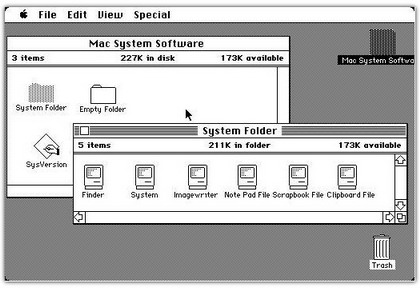
Witness the evolution through time of Macintosh’s operating system, Mac OS. See where it all began, from System 1.0 (1984) to Mac OS X 10.5 (2007).

System 1.0 (January 1984)

s10

main

The first version of the Mac OS is easily distinguished between other operating systems from the same period because it does not use a command line interface; it was one of the first operating systems to use an entirely graphical user interface. Additional to the system kernel is the Finder, an application used for file management, which also displays the Desktop.

These releases could only run one application at a time, though special application shells such as Switcher could work around this to some extent. Systems 1.0, 1.1, and 2.0 used a flat file system with only one kludged level of folders, called Macintosh File System (MFS); its support for folders (subdirectories) was incomplete. System 2.1 (Finder 5.0) introduced the HFS (Hierarchical File System) which had real directories. System 3.0 was introduced with the Mac Plus, adding support for several new technologies including SCSI and AppleTalk, and introducing Trash “bulging”, i.e., when the Trash contained files, it would gain a bulged appearance. System 4.0 came with the Mac SE and Macintosh II.

The System series included the following versions:

  • System 1.0, Finder 1.0 (January 1984)
  • System 1.1, Finder 1.1g (May 1984)
  • System 2.0, Finder 4.1 (April 1985)
  • System 2.1, Finder 5.0 (September 1985)
  • System 3.0, Finder 5.1 (January 1986)
  • System 3.2, Finder 5.3 (June 1986)
  • System 3.3, Finder 5.4 (January 1987)
  • System 3.4, Finder 6.1
  • System 4.0, Finder 5.4 (March 1987)
  • System 4.1, Finder 5.5 (April 1987)

System Software 5 (October 1987)

mac_s5

System Software 5 (also referred to as simply System 5) added MultiFinder, an extension which let the system run several programs at once. The system used a co-operative multitasking model, meaning that time was given to the background applications only when the running application yielded control. A clever change in system functions that applications were already calling to handle events made many existing applications share time automatically. Users could also choose to not use MultiFinder, and thus stick with using a single application at a time as in previous releases of the system software.

System Software 5 was also the first Macintosh operating system to be given a unified “Macintosh System Software” version number, as opposed to the numbers used for the System and Finder files.

The System Software 5 series included the following versions:

  • System Software 5.0 (System 4.2, Finder 6.0, MultiFinder 1.0)
  • System Software 5.1 (System 4.3, Finder 6.0, MultiFinder 1.0)

System Software 6 (September 1988)

system6

System Software 6 (also referred to as simply System 6) was a consolidation release of the Mac OS, producing a complete, stable, and long-lasting operating system.

The System Software 6 series included the following versions:

  • System Software 6.0 (System 4.4, Finder 6.1, MultiFinder 1.1 — the version numbers of the System and MultiFinder files were changed to 6.0 just before the public release)
  • System Software 6.0.1
  • System Software 6.0.2
  • System Software 6.0.3
  • System Software 6.0.4
  • System Software 6.0.5
  • System Software 6.0.6 (only released as an embedded part of the ROM of the Macintosh Classic)
  • System Software 6.0.7
  • System Software 6.0.8 (identical to System 6.0.7, but configured with System 7.0 printing software for printer sharing with System 7)
  • System Software 6.0.8L (only for Macintosh Classic, Classic II, PowerBook 100, Macintosh LC, LC II)

System 7 (May 1991)

system7

On May 13, 1991 System 7 was released. It was the second major upgrade to the Mac OS, adding a significant user interface overhaul, new applications, stability improvements and many new features.

The most significant feature of System 7 was probably virtual memory support, which previously had only been available as a third-party add-on. Accompanying this was a move to 32-bit memory addressing, necessary for the ever-increasing amounts of RAM available. Earlier versions of Mac OS had used the lower 24 bits for addressing, and the upper 8 bits for flags. This had been an effective solution for earlier Macintosh models with very limited amounts of RAM, but it became a liability later. Apple described code that assumed the 24 + 8-bit addressing as being “not 32-bit clean”, and most such applications would crash when 32-bit addressing was enabled by the user.

One notable System 7 feature was the built-in co-operative multitasking. In System Software 6, this function was optional through the MultiFinder. System 7 also introduced aliases, similar to shortcuts that were introduced in later versions of Microsoft Windows. System extensions were enhanced, by being moved to their own subfolder; a subfolder in the System Folder was also created for the control panels. In System 7.5, Apple included the Extensions Manager, a previously third-party program which simplified the process of enabling and disabling extensions.

Systems 7.1 and 7.5 introduced a large number of “high level” additions, considered by some to be less well thought-out than they could have been. Some of the most confusing were the reliance on countless System Enablers to support new hardware, and various System update extensions with inconsistent version numbering schemes. Overall stability and performance also gradually worsened during this period, which introduced PowerPC support and 68K emulation.

Stability returned with Mac OS 7.6, which dropped the “System” moniker as a more-trademarkable name was needed in order to license the OS to the growing market of third-party Macintosh clone manufacturers.

The System 7 series included the following versions:

  • System 7.0 (released in late 1991; integrated MultiFinder always enabled)
  • System 7.0.1 (introduced with LC II and Quadra series)
  • System 7 Tuner (update for both 7.0 and 7.0.1)
  • System 7.1
  • System 7.1 Pro (version 7.1.1, combined with PowerTalk, Speech Manager & Macintalk, Thread Manager)
  • System 7.1.2 (first version for Macs equipped with a PowerPC processor)
  • System 7.1.2 (only for Performa/LC/Quadra 630 series, very quickly replaced by 7.5)
  • System 7.5
  • System 7.5.1 (System 7.5 Update 1.0 — the first Macintosh operating system to call itself “Mac OS”)
  • System 7.5.2 (first version for Power Macs that use PCI expansion cards, usable only on these Power Macs and PowerBooks 5300 and Duo 2300)
  • System 7.5.3 (System 7.5 Update 2.0)
  • System 7.5.3L (only for Mac clones)
  • System 7.5.3 Revision 2
  • System 7.5.3 Revision 2.1 (only for Performa 6400/180 and 6400/120)
  • System 7.5.4, never released
  • System 7.5.5
  • Mac OS 7.6 (name formally changed because of the experimental clone program, although System 7.5.1 and later used the “Mac OS” name on the splash screen)
  • Mac OS 7.6.1

Mac OS 8 (July 1997)

macos8

Mac OS 8 was released on July 26, 1997, shortly after Steve Jobs returned to the company. It was mainly released to keep the Mac OS moving forward during a difficult time for Apple. Initially planned as Mac OS 7.7, it was renumbered “8″ to exploit a legal loophole to accomplish Jobs’ goal of terminating third-party manufacturers’ licenses to System 7 and shutting down the Macintosh clone market.[citation needed] 8.0 added a number of features from the stillborn Copland project, while leaving the underlying operating system unchanged. A multi-threaded Finder was included, enabling better multi-tasking. The GUI was changed in appearance to a new shaded greyscale look called Platinum, and the ability to change the appearance themes (also known as skins) was added with a new control panel. This capability was provided by a new “appearance” API layer within the OS, one of the few significant changes.

Apple sold 1.2 million copies of Mac OS 8 in its first two weeks of availability and 3 million within six months. Mac OS 8.1 saw the introduction of an updated version of the Hierarchical File System called HFS Plus , which fixed many of the limitations of the earlier system (HFS Plus continues to be used in Mac OS X). There were some other interface changes such as separating network features from printing (the venerable, and rather odd Chooser was at last headed for retirement), and some improvements to application switching. However, in underlying technical respects, Mac OS 8 was not very different from System 7.

The Mac OS 8 series included the following versions:

  • Mac OS 8.0
  • Mac OS 8.1 (last version to run on either a 68K or PowerPC processor, added support for USB on the Bondi iMac, added support for HFS+)
  • Mac OS 8.5 (first version to run only on a PowerPC processor, added built-in support for Firewire on the PowerMac G3)
  • Mac OS 8.5.1
  • Mac OS 8.6 (included a new nanokernel for improved performance and Multiprocessing Services 2.0 support, added support for the PowerPC G4 processor)

Mac OS 9 (October 1999)

macos9

macos90-1-1

Mac OS 9 was released on October 23, 1999. It was generally a steady evolution from Mac OS 8. Early development releases of Mac OS 9 were numbered 8.7. MacOS 9 added improved support for AirPort wireless networking. It introduced an early implementation of multi-user support (though not considered a true multi-user operating system by modern standards). An improved find-sherlock engine with several new search plug-ins. Mac OS 9 also provided a much improved memory implementation and management. AppleScript was improved to allow TCP/IP and networking control. Mac OS 9 also made the first use of the centralized Apple Software Update to find and install OS and hardware updates. Some other resplendent and unique features included its on-the-fly file encryption software with code signing and Keychain technologies, Remote Networking and File Server packages and much improved list of USB drivers.

OS 9 also added some transitional technologies to help application developers adopt some OS X features before the introduction of the new OS to the public, again easing the transition. These included new APIs for the file system, and the bundling of the Carbon library that apps could link against instead of the traditional API libraries — apps that were adapted to do this can be run natively on OS X as well. Other changes were made in OS 9 to allow it to be booted in the “classic environment” within OS X. This is a compatibility layer in OS X (in fact an OS X application, known in developer circles as “the blue box”) that runs a complete Mac OS 9 operating system, so allowing applications that have not been ported to Carbon to run on Mac OS X. This is reasonably seamless, though “classic” applications retain their original OS 8/9 appearance and do not gain the OS X “Aqua” appearance.

The Mac OS 9 series included the following versions:

  • Mac OS 9.0
  • Mac OS 9.0.2
  • Mac OS 9.0.3
  • Mac OS 9.0.4
  • Mac OS 9.1
  • Mac OS 9.2
  • Mac OS 9.2.1
  • Mac OS 9.2.2

Mac OS X (March 2001)

mac-os-x

tiger_01

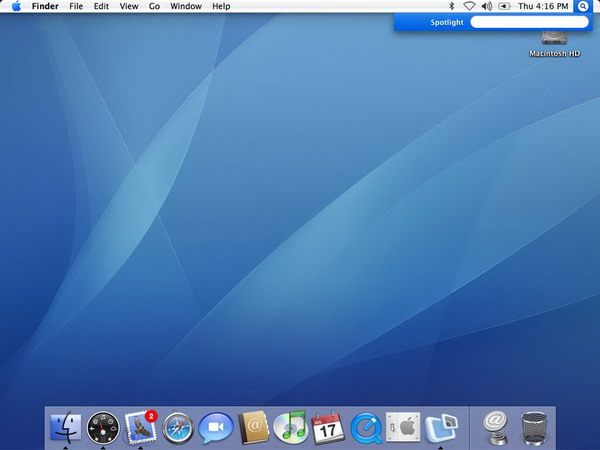
Mac OS X is the newest of Apple Computer’s Mac OS line of operating systems. Although it is officially designated as simply “version 10″ of the Mac OS, it has a history largely independent of the earlier Mac OS releases.

The Mac OS X series include the following versions:

  • Mac OS X Public Beta “Kodiak”
  • Mac OS X v10.0 “Cheetah”
  • Mac OS X v10.1 “Puma”
  • Mac OS X v10.2 “Jaguar”
  • Mac OS X v10.3 “Panther”
  • Mac OS X v10.4 “Tiger”
  • Mac OS X v10.5 “Leopard”
  • Mac OS X v 10.6 “Snow leopard”

snowlepord

Microsoft Windows 7 scam

Today I came across this website www.windows7giveaway.com which promises to give away a free copy of windows 7 ultimate if you pay $25 as the shipping cost. This looks like a very attractive deal. One of our friends from Pune startups group took the initiative to verify it from Microsoft and here is what they have to say.

windows 7 scam

“Dear Sir,

Thank you for your e-mail concerning the Microsoft lottery. We would

like to confirm this is a hoax website and did not originate from

Microsoft. Microsoft does not have any connection whatsoever with

this alleged lottery. It’s unfortunate that some people have chosen to

abuse the freedom that the internet offers by conducting fraudulent

activity.

Privacy and security are very important to Microsoft. For more

information please visit the following website:

http://www.microsoft.com/security/lottery/default.mspx

Yours sincerely,

Microsoft UK”

I would recommend everyone to inspect such offers closely as this might make you pocket a few bucks lighter and you would not be getting anything in return except frustration and annoyance.

Moreover any such issues can be reported here http://go.microsoft.com/?linkid=9661492

Working 9 to 5

Tumble outta bed
And stumble to the kitchen
Pour myself a cup of ambition
And yawn, and stretch, and try to come to life
Jump in the shower
And the blood starts pumping
Out on the streets
The traffic starts jumping
with folks like me on the job from 9 to 5

Working 9 to 5
What a way to make a living
Barely getting by
Its all taking
And no giving
They just use your mind
And they never give you credit
Its enough to drive you
Crazy if you let it

They let your dream
Just to watch em shatter
You’re just a step
On the boss mans a ladder
But you got dream hell never take away

your On the same boat
With a lot of your friends
Waiting for the day
Your ship will come in
And the tides gonna turn
An its all gonna roll you away

Working 9 to 5,
For service and devotion
You would think that I
Would deserve a fair promotion
Want to move ahead
But the boss wont seem to let me
I swear sometimes that man is out to get me

Working 9 to 5
What a way to make a living
Barely getting by
Its all taking
And no giving
They just use your mind
And you never get the credit
Its enough to drive you
Crazy if you let it

Working 9 to 5
Yeah

From The Love Guru