All posts by Utkarsh

Solution designer with Firstsource solutions. A post grad in Networks and IT Infrastructure. Technology enthusiast, blogger, webdesigner, Network security aspirant and in love with electronics and gadgets. This blog is an attempt to share what I find interesting... almost anything @Mtaram on twitter and

Windows 7 and Snow Leopaprd head to head

Both windows 7 and Snow Leopard have been on the board for quite some time and bow lets pitch them head to head and see if they are worth the upgrade.

Interface

Both operating systems have improved the user experience, and which one you prefer is largely a matter of taste. There’s no doubt that Windows 7 is the prettiest Windows yet, but to our eyes Apple still has the more refined appearance while the redesigned Windows Taskbar is, well, a bit minging.

Snow leopard vs windows 7

SERVICES MENU: OS X’s Services menu is handy, but it gets awfully cluttered. Hurrah, then, for the new context-sensitive version. Snow Leopard is all about simple but useful UI tweaks like this

Snow Leopard includes lots of welcome interface changes, including a context sensitive Services menu, a QuickTime interface that isn’t utterly hideous, a redesigned Exposé that’s now integrated into the Dock, scrollable Stacks and the latest Safari, which brings iTunes-style Cover Flow browsing to your favourite sites and browser history.

Snow leopard vs windows 7

STACK IT UP: Snow Leopard refines rather than reinvents a lot of features, so for example Stacks are now scrollable for easy navigation

Windows 7 gets Taskbar icon thumbnail previews and the fun Aero Shake, which enables you to hide everything but the current window by giving it a wiggle. Jump lists make Taskbar icons more useful, the streamlined Notification Area is considerably less annoying than before and you now get an OS X-style pop-up preview that enables you to listen to MP3s without opening Windows Media Player.

Snow leopard vs windows 7

PREVIEW IT: Thumbnail previews are little things that make a huge difference, and they’re among several useful UI improvements in Windows 7

In interface terms, then, Windows 7 is Vista with knobs on and Snow Leopard is Leopard given a bit of polish. The difference between Vista and Windows 7 is much more dramatic than the difference between Leopard and Snow Leopard, but both make your computer a nicer place to be.

Performance

Both operating systems promise improved performance and smaller footprints, with Apple suggesting that you’ll free up 7GB of hard disk space by upgrading. Microsoft is rather coy on this one, but if we look at the recommended system requirements Windows 7 wants 16GB free disk space for 32-bit and 20GB for 64-bit. Snow Leopard wants 5GB.

Windows and Snow Leopard have a number of performance features, but some of them are very hardware-dependent – so for example Snow Leopard’s hardware acceleration for QuickTime only works on Macs with an Nvidia 9400M graphics processor.

Similarly OpenCL, which uses the graphics chip for additional processing muscle, only works on specific Nvidia and AMD graphics chips, while the 64-bit processing naturally requires a 64-bit processor. If you do have all the right bits you should notice a dramatic difference in system performance, but even if you don’t Snow Leopard boasts faster waking, a faster Finder, speedier Time Machine backup and Safari, which is positively rocket-powered compared to Windows’ Internet Explorer 8.

However, to make all of this possible Apple has decided that it needs to make a sacrifice: Snow Leopard doesn’t support PowerPC Macs, so if you’ve got an ageing PowerBook kicking around you won’t be able to upgrade from Tiger or Leopard.

Snow leopard vs windows 7

QUICK TIME: Bye-bye horrible old QuickTime interface; hello minimalist new UI, hardware acceleration and iPhone-style editing

Windows is noticeably quicker too. As we discovered when we benchmarked the RTM version Windows 7 is significantly quicker to boot, to sleep and wake, to shut down and to copy files than Vista, and it feels much snappier too.

Like Snow Leopard it enables programs to take advantage of the graphics processor for additional horsepower, although like Snow Leopard you need specific hardware to get the benefit: in the case of Windows 7, that means DirectX 11-compatible graphics kit.

Windows 7 has tweaked its multi-core support, although if you install the 32-bit version you won’t be able to take advantage of 64-bit processing. We’d recommend installing 64-bit Windows unless you’re running peripherals whose manufacturers can’t be bothered making 64-bit drivers; thankfully such firms are becoming increasingly rare.

In both cases the real performance increases will turn up in the longer term, when application developers take advantage of OpenCL and Grand Central Dispatch in Snow Leopard and DirectX 11 in Windows 7.

Functionality

Rather bizarrely, Macs now support Microsoft Exchange by default while Windows doesn’t. But there’s more to Snow Leopard than support for Microsoft’s collaboration and communication system – which is just as well, given that few home users give a monkey’s about Exchange.

iChat AV does a better job using less bandwidth than before, PDF handling has been improved to make selecting text in multi-column layouts much simpler, and networking has been cleverly tweaked so that a sleeping Mac will wake up when files need to be shared and nod off again when it’s no longer needed.

The most dramatic new feature is QuickTime X, a major overhaul of Apple’s media player. It can use hardware acceleration for smoother playback, supports HTTP Live Streaming and provides easy video capture and uploading to YouTube or MobileMe. You also get iPhone 3GS-style video editing and a much less obtrusive interface.

Windows 7 gets better multimedia too. Media Player supports more formats including H.264 video, and there’s a nice feature called Play To that enables you to send media to other devices such as the Xbox 360. Cleverly, Play To will convert media into formats that your chosen device can understand.

Snow leopard vs windows 7

PLAY TO: Windows 7 quite likes multimedia, and its Play To feature enables you to send music to a wide range of devices

Windows’ networking has been given a major kick up the backside too. The new HomeGroup feature makes home networking pretty simple, and it’s designed to make home file sharing as easy as possible. You also get Internet Explorer 8, which is Microsoft’s best browser to date, and while it’s nowhere near as speedy as Safari or other rival browsers – especially with JavaScript – its Accelerators, Web Slices and improved security mean it’s a big improvement over IE7.

Snow leopard vs windows 7

ACCELERATE IT: IE8 might not be as fast as Safari in the JavaScript stakes, but features such as Accelerators and Web Slices are pretty useful

Last but not least, Windows 7 gets Windows Touch, which supports iPhone-style multi-touch input (provided, of course, you have the hardware). OS X has touch support via laptop trackpads, of course. Windows Touch could be very important when you’re choosing your next PC, but it’s irrelevant at the moment for the majority of upgraders.

Everyone’s a winner, baby

On the face of it, Apple beats Microsoft in several key areas. The first is price – Snow Leopard is £25, while Windows 7 Home Premium is currently £64.98 at Amazon – and the second is ease of installation: while Windows 7 supports in-place upgrades that keep your files intact, XP users will need to do a clean install, as will anybody upgrading from a 32-bit Vista installation to a 64-bit Windows 7 one.

Snow Leopard is designed to be an in-place upgrade, and there’s no version confusion either: Apple sells one version to Microsoft’s three retail editions.

Microsoft could certainly learn some lessons from Apple in these areas – although Apple isn’t entirely angelic, as Tiger users can only get Snow Leopard if they also buy iLife and iWork in the £129 Mac Box Set.

At least, that’s the official story. According to Walt Mossberg of the Wall Street Journal, “Apple concedes that the $29 (£25 in the UK) Snow Leopard upgrade will work properly on these Tiger-equipped Macs.” We’ll let you know what Apple says about that one.

Overall, though, it’s impossible to say whether one operating system is better than another – we’re comparing apples and oranges here, no pun intended. As most of its key changes are under the hood Snow Leopard feels more like a service pack than a new OS, and it’ll be a while before its biggest changes – such as the new toys for software developers to play with – become obvious to the average punter.

The price reflects that, and there’s enough tweakery and polish to ensure that no Intel Mac owner is going to regret spending their twenty-five quid.

Windows 7 is a different beast, with some dramatic differences to Windows Vista. In many respects it feels like the operating system Vista promised to be, but there’s enough innovation here to make it more than just Windows Vista Fixed Edition. As with Snow Leopard, you’re not going to regret purchasing it – especially if you pre-order it right now before the prices go up on 1 September.

So which is better? We think that’s the wrong question. Snow Leopard is better than Leopard, and Windows 7 is better than Windows Vista. If you aren’t planning to buy a new computer in the not too distant future, that’s all that matters: whichever platform you’re currently running, upgrading is well worth the money.

Really cool reasons to get Snow Leopard

There’s much more to Snow Leopard than just a few tweaks. Apple set out – as they put it themselves – to “build a better Leopard”, and it shows in every streamlined action and snappy response time.

What that means for you, the user, is that you get some of your precious time back: time that you’re not spending waiting for an application to launch or a spring-loaded folder to open. That in turn means less frustration: Snow Leopard (and Mac OS X in general) is about technology that respects the user by keeping out of their way.

What about Apple’s other claims? For instance, does Snow Leopard really save your disk space? The iMac we’re using had 152.06GB on its hard disk before we installed the new OS.

And afterwards? It’s currently showing 145.14GB used: a saving of 6.92GB. And that’s as near as dammit to Apple’s claimed 7GB saving, we reckon.

Extra support

One of the other aspects of Macs that we don’t think gets nearly enough attention is their continued support for people with disabilities.

From its early days, Mac OS had features such as Sticky Keys to help those who have difficulties using the keyboard. The Universal Access System Preferences pane now offers a wide range of support technologies built in to Mac OS X, and Snow Leopard incorporates the drivers for more than 40 models of Braille display.

If you use your Mac at home, Snow Leopard now has built-in support for Microsoft’s Exchange Server mail, calendars and contact lists.

What does that mean? Well, if you’ve been trying to cajole your work’s IT department into letting you bring your MacBook into the office, they’ve now run out of excuses! They’ll find system requirements for Exchange on Apple’s site.

All in all, then, we would say that it’s worth upgrading to Snow Leopard – for those of you who can. If you have a PowerPC Mac, Leopard is still supported, and will be updated for a while yet. What follows is a summary of some of the features of Snow Leopard that we’re enjoying. And we’re pretty sure you’ll enjoy them too.

1. Safari – so good

Alright, we know – Safari 4.0 has actually been out for quite a while now, but for some of you, this might be the first time you’ve seen it. Certainly Snow Leopard’s default browser has much to recommend it: rendering of pages is fast, accurate and mostly error-free.

Safari

It’s even one of the most standards-compliant browsers out there, and passes the Web Standards Project’s stringent Acid 3 Test with flying colours (visit acidtests.org for more details).

2. Where in the world…

Take a look at the Time Zone tab in System Preferences > Date & Time. You’ll probably find it’s now a much more accurate reflection of wherever you are at present. That’s because Snow Leopard rather helpfully uses the same Core Location technology as the iPhone and iPod touch to work out your exact location.

Location support

And if you’re the globe trotting type, no longer will you need to remember to reset the time zone after a journey – Snow Leopard does that automatically too.

3. Printer support

Mac OS X has always been a good citizen when it comes to supporting a large number of printers. And now it’s even more helpful than ever before. It will look for local printers on installation, and even checks for their latest drivers over the internet.

Printer

The underlying technology behind Snow Leopard’s printer support is called CUPS (which stands for Common Unix Printing System) and it’s also a brand-new feature this time around.

4. Watch your language

The International System Preferences pane has received a makeover too. Now called Language & Text, it’s a point of reference for all system-related uses of text. Here’s where you set your Mac to use British-English spelling, and also set up keyboard shortcuts for symbols and phrases.

Language

For instance, already enabled for you is the shortcut that converts ‘(c)’ into ©. You can also use it to turn simple combinations of letters into words or phrases: for instance ‘MF’ could become ‘MacFormat’.

5. Taking a shortcut

Remake or remodel could be the watchwords for Snow Leopard with Keyboard being another of the Preferences panes receiving an overhaul.

Keyboard

Once you’ve launched it, choose the Keyboard Shortcuts tab and you’ll see what we mean. Now properly codified, Keyboard Shortcuts offers you – the user – the chance to add, remove or modify the keyboard shortcuts you want.

For instance, if there’s an application you want to launch with the touch of a key, go ahead. Want to change the default keys for Exposé? No problem.

6. For the record

Ever had to explain one of the finer points of Mac OS X to a Mac newbie over the phone? Well, now you don’t have to, thanks to QuickTime X (you could always ignore your phone of course, but that would be rude).

Record

In QuickTime Player X, go to File > New Screen Recording, use the pulldown menu to choose your sound and quality settings, choose a place to save your movie, and record yourself explaining the problem with full visuals. You could even post your tutorial masterpiece to YouTube (go to Share > YouTube…).

7. Exclusive preview

And the updated features just keep on rolling in – including Preview, which proudly continues with its onward march towards being one of the most useful applications bundled with Mac OS X. Its handling of text selection from PDFs is absolutely superb now, and it will even grab text that is arranged in columns.

PDF preview

Annotations have also seen something of an improvement in this version too. If you click on the Annotate toolbar button you’ll see that a full toolbar appears at the bottom of the application window.

You’ll find that this makes it much easier to select and use multiple tools, further speeding up your work and increasing your efficiency.

8. Disk-onsolate…

Do you remember the bad old days, when you’d try to eject a disk from your Mac’s desktop, only to be told that it couldn’t be ejected because it was ‘…in use by another application’? Extremely frustrating. But which application was actually using it?

Disk in use

Snow Leopard now works out which application is currently using the disk in question. It will then present the information in the ‘disk in use’ dialogue before advising you to quit the application and try it again.

9. Pair remote

Using the General tab of the Security System Preferences pane you can also choose to pair your Apple Remote with your Mac so that another remote in the vicinity doesn’t trigger Front Row, either by accident or design: simply click Pair…, and follow the on-screen instructions.

Pair remote

You can also disable all remotes: handy if you’re in an open location and your Mac might pick up signals from others.

10. Firewall

To prevent unauthorised servers contacting your Mac, go to System Preferences > Security > Firewall, and hit Start (you might need to authenticate first; click the padlock icon and enter an administrator password).

Firewall

To enable incoming connections for certain apps click Advanced…, then add the app you want by clicking +, finding the app and clicking Add.

11. Control remotes

Using the General tab of the Security System Preferences pane you can pair your Apple Remote with your Mac so that another remote in the vicinity doesn’t trigger Front Row: simply click Pair…, and follow the on-screen instructions.

Remotes

You can also disable all remotes: handy if you’re in an open location and your Mac might pick up signals from others.

12. How does that grab you?

To make a screenshot hit Shift+Cmd+3 to grab the whole screen, Shift+Cmd+4 to grab a window. Not so long ago, you’d have to wade through images named Picture 1, Picture 2, and so on, to find the right one.

Screengrab

Well, not any more: Snow Leopard adds the date and time to screenshot file names, making it easy to find the one you need.

via TechRadar

Google home page = chrome page

Those nice people at Google, engineers at heart rather than craven, money-grabbing business people, seem to have suffered a sudden attack of commercialism.

The folks at the Silicon Alley Insider alerted me to this startlingly commercial ad on the Google home page. It can’t be, I thought. So I went to Google.com myself and there it still was: a dry little thing in the right-hand corner suggesting that I should download Google Chrome.

You might be wondering why Google might have taken this sudden, almost alarming step into advertising’s dark hole.

You might consider that it comes soon after Google’s extremely engaging Chrome campaign, the one that comes over all Picasso.

You might wonder whether the company has had enough of browser war talk and decided to enact browser war mayhem.

You might also wonder whether, following the rumors of a Google phone, the company has decided that it has had enough of its nice-guy persona. Like a priest who’s renounced his vows in order to play the field, Google is going to make a grab for every last dollar in the technological space.

Whatever the reason, it all seems rather sweet. Which is just how Google wants it to seem.

via Cnet

Old time innovation

I used to see the buses in Mumbai and was always owerwhelmed by the sheer number of BEST busses running all over the mega city. One major question that I always wanted the answer of was how they manage the route numbers and source and destination lables that are displayed on buses. Then recently I saw what was the innovation behind that.

bus innovationThere are rolls of printed cloth with all numbers and destinations printed on it. All that remains to be done is to just scroll to the route number and name and run the bus on that route. I bet that its beats LCD and other electronic displays by miles when comes to cost.

Technology and its limits

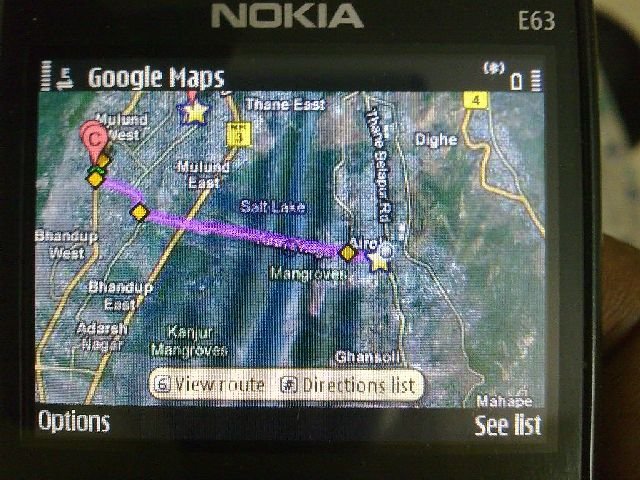
Yesterday for the first time I was roaming alone in Mumbai. Had to meet a friend in Andheri and I was staying in Airoli sector 6. I was not sure which bus goes where and thus all was to be asked from friends and fellow travellers.

The starting bus was told to me by my friend. Just to make sure that I was going where I wanted to go I tried to map the route on my E63. The connectivity was not an issue where ever I went.

The bus took me from Airoli sector 6 to SEEPZ in 20 minutes in 30 bucks that too in AC. (yea its true). I got down at SEEPZ. So far so good. Had my friend sms me her office address. Looked up the building name in map search and there it was on the map. I decided to walk upto her office. I reached there and waited for her to come. Did I tell you that all this while I was chatting to 3 of my friends who were on Gtalk and Facebook via Nimbuzz. I also Tweeted some bytes via Snaptu and updated my Facebook status through it too.

So far so good.

Now what bothered me was the resolution of my location shown to me on my phone which is within 500 to 700 meters depending upon the triangulation and terrain. We decided to go to Dominos and I assured them that we can reach on our own and lets try. At most we would have to ask some one.

Searched for Dominos on map located a store and as it was not that close we decide to get an auto rickshaw. The map showed me that we were going off route so we took a U turn… may be the driver was taking us on the right road… but who knows. We got down at a place somewhere near dominoes. In between Google failed to triangulate my location and ended up showing me somewhere in the mountains.

We looked for Dominos and following the map we reached the place marked dominoes. Now I don’t know whether it was the resolution issue or some bugger had marked dominoes on the wrong place. I guess the probability of it being marked wrongly on map is more. We had to ask a cool guy on a bus stop who told us the way to Dominos which was almost a kilo meter away from the marked spot. I also had called up the same outlet twice to confirm the location on the number that I got on the map. [number was correct spot was wrong or may be it was the triangulation algorithm… we would not be able to know]. Finally we reached Dominos. Had hell of a party. India had won the match too…

Lesson learn: Trust the technology but it has its limits and asking a human doest hurt at all (if confused ask more then one)

Technology can be trusted but people can not as we see that the person who marked Dominos on map was surely a human.

I know both statements above contradict but so is life… contradictory and confusing…

BTW I love my E63

Feel like blogging? Blog with us!

http://smartlifeblog.com/wp-content/uploads/2009/04/99designs-crowdsource.jpgIf you always wanted to have a blog but didn’t wanted to go through the hassles of maintaining one? Do you feel like you want to contribute to our blog? We welcome all our reader to post on our blog. Please register with us and post on the blog. Dont forget to fill in the Bio info on your profile page after registering.
For those of you new to wordpress follow this short tutorial to learn how to post, just in few minutes.
<?php edit_post_link(__("**Edit**"), ''); ?>

One more among us…

Aditya Aima

Aditya Aima… A inquisitive guy… asks hell lot questions… cares for the world… and writes what he feels… Thus he is here with us…
I met him in my MBA class… liked his questions… liked what he opined… And we have him here to express himself for us all.

Goo.Gl Google’s own url shortner

goo.glGoogle has launched its own URL shortening tool, as the company continues to expand into new services.

While not quite as earth shattering as the launch of its own operating system, the unveiling of Goo.gl is an interesting move for the search giant.

Link shorteners, such as TinyURL and Bit.ly, allow people to reduce long URLs into a short jumble of letters and digits. These tools have become increasingly high-profile thanks to services such as Twitter – which limits tweets to 140 characters.

Unlike those previously mentioned services, Goo.gl will not be offered as a standalone link shrinker. Instead it will initially be built into Google’s products, beginning with the company’s browser toolbar and its Feedburner RSS service.

“Google URL shortener is not a stand-alone service; you can’t use it to shorten links directly,” says Muthu Muthusrinivasan, a Google software engineer on the company’s blog.

“If the service proves useful, we may eventually make it available for a wider audience in the future,” he concludes.

According to Google, URLs shortened through Goo.gl will be automatically checked against a list of malicious sites, allowing the company to warn users about dodgy links.

Introducing Rhydemz

Hi People….

We have got a new scribler for our blog. Ridhima Capoor aka Rhydemz….

A Simple female…. a True Leo… 26th july [dont forget to wish her] One of my old school friends… Asked her to write for us just like that and she agreed… I am so happy….  She has brought in a new perspective to our blog… What ever she has written or is going to write in future is going to be totally different from what all we have been writing till now. Hope you all continue reading our blog and enjoy…

We are awaiting your valuable feedback and comments.

Stranger than fiction

http://www.reel-men.com/wp-content/uploads/2009/02/stranger-than-fiction.jpgAnything worth writing comes inexpecably and without method!

If a man does know he is going to die but dies willingly knowing that he can stop it. Isnt that the type of man you would keep alive?

Sometimes when we loose ourselves in fear and despair, in routine and constancy, in hopelessness and tragedy, we can thank god for we can find reassurance in a familiar hand on our skin or a kind and loving gesture or subtle encouragement or a loving embrace or a ooffer of confort not to mention a hell lot…. and may a occasional piece of fiction.

The nuances the anomalities the subtleties which we assume only accesorize our day are infact here for much larger and nobler cause. They are here to save our lives.