 You recently bought a good qwerty phone and you can do all you want on the move. And suddenly you realize that you can have your office email on it too.
It definitly is a good idea and can also make you shine in the eyes of your boss with timely replies of email.
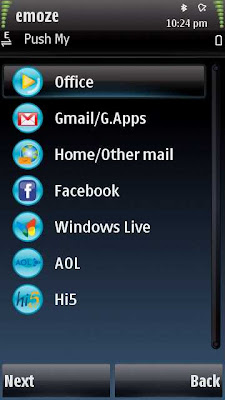
Most phones support outlook over web access. If not you can head over to Emoze and download the individual client for your phone to access office email.
Requirement
1. You need outlook over web access for you mail box. If you can access you office email from any where with a url like http://mail.yourcompanyname.com/exchange then you already have it.
2. A smart phone
3 Emoze client
How to get it done
Install emoze on your phone.
Step 1 : From the main screen of Emoze, select Add Account.
Step 2 : Emoze will check for all available account types and display them on the main screen, choose the Office option.
Step 3 : You will need keep the following OWA details ready for the next step – username, password, OWA URL and windows domain name.
Step 4 : Fill up the user name field, password field, your OWA domain which is your windows domain name , and OWA URL. These field are vital and are required for getting your office ail, contacts, email and calendar data. You may need to get some of these details from your System Administrator.
Your windows domain can be obtained by selecting Alt+Ctrl+Delete on your windows terminal. The OWA URL is the URL of the exchange server. It cannot be behind a firewall or VPN.
Step 5 : Select Next and choose the folders which you want to synchronize. For example, you can choose Calendar and Inbox.
Step 6 : Now choose Settings and select Account info. Specify the folders which you want to push. You can specify Active Days which decides on what days the application will synchronize your emails.
Step 7 : You can enable Power Saving mode to increase the synchronization period to save your phones’s battery life. During this time the application will check for mails with longer gaps. In the Active From and Active To fields, you can enter the duration for the power saving mode.
Step 8 : If you want to specify an access point which you want to permanently use with Emoze, you can enter it under the Settings menu. The Statistics option will display the connection details, so you can track your data usage.